> For the complete documentation index, see [llms.txt](https://docs.snomed.org/llms.txt). Markdown versions of documentation pages are available by appending `.md` to page URLs; this page is available as [Markdown](https://docs.snomed.org/snomed-ct-practical-guides/snomed-ct-sql-practical-guide/appendices/appendix-a-building-the-snomed-ct-example-database/a5-using-mysql-workbench-to-query-snomed-ct.md).
# A.5 Using MySQL Workbench to Query SNOMED CT
## Creating and Configuring a SNOMED CT Connection
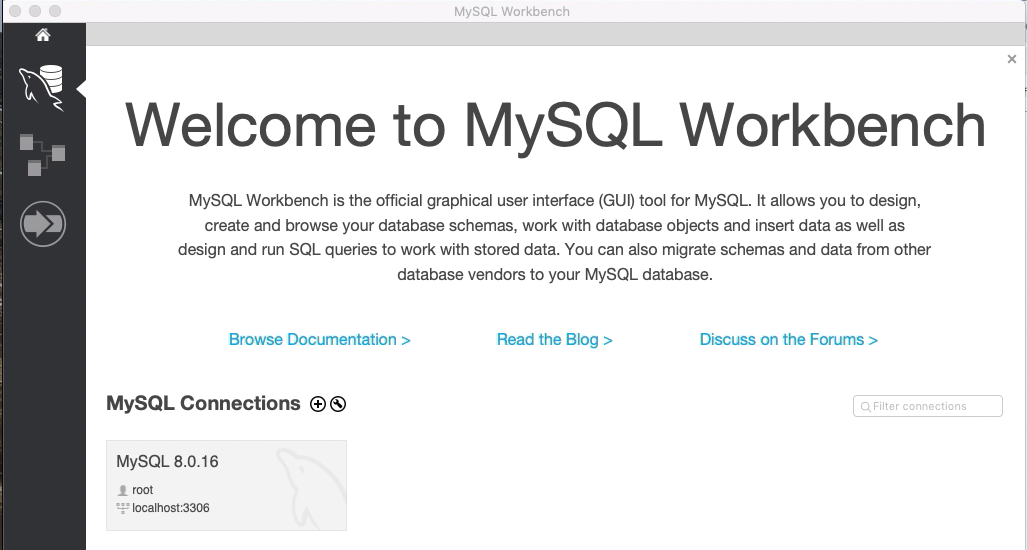
### Open MySQL Workbench Application
The following dialog should be displayed.
### Create a SNOMEDCT Connection
* Click the spanner symbol to the right of the **MySQL Connections** prompt.
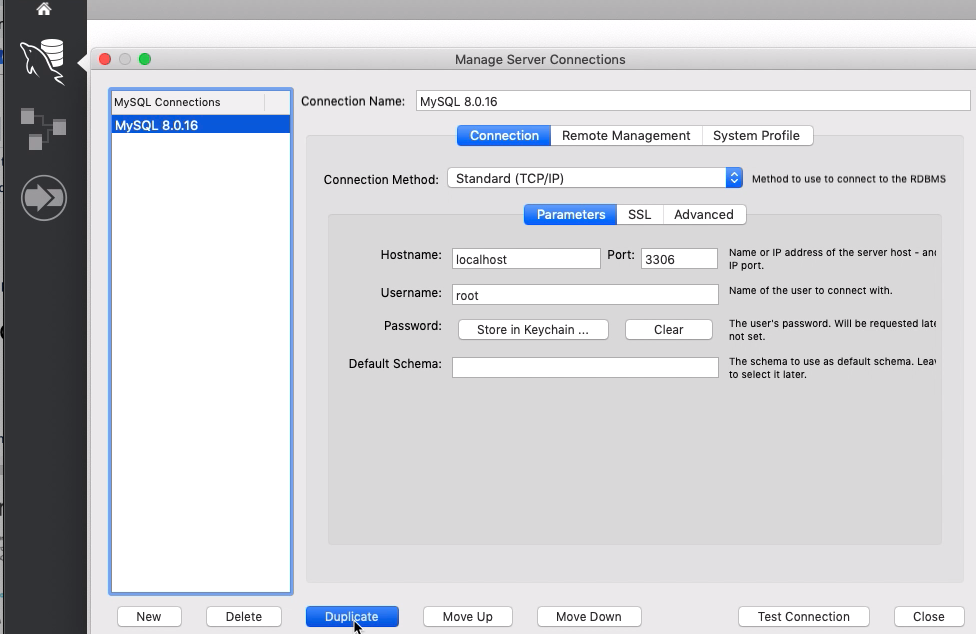
When the dialog below opens:
* Select the default MySQL connection
* Then click the **Duplicate** button
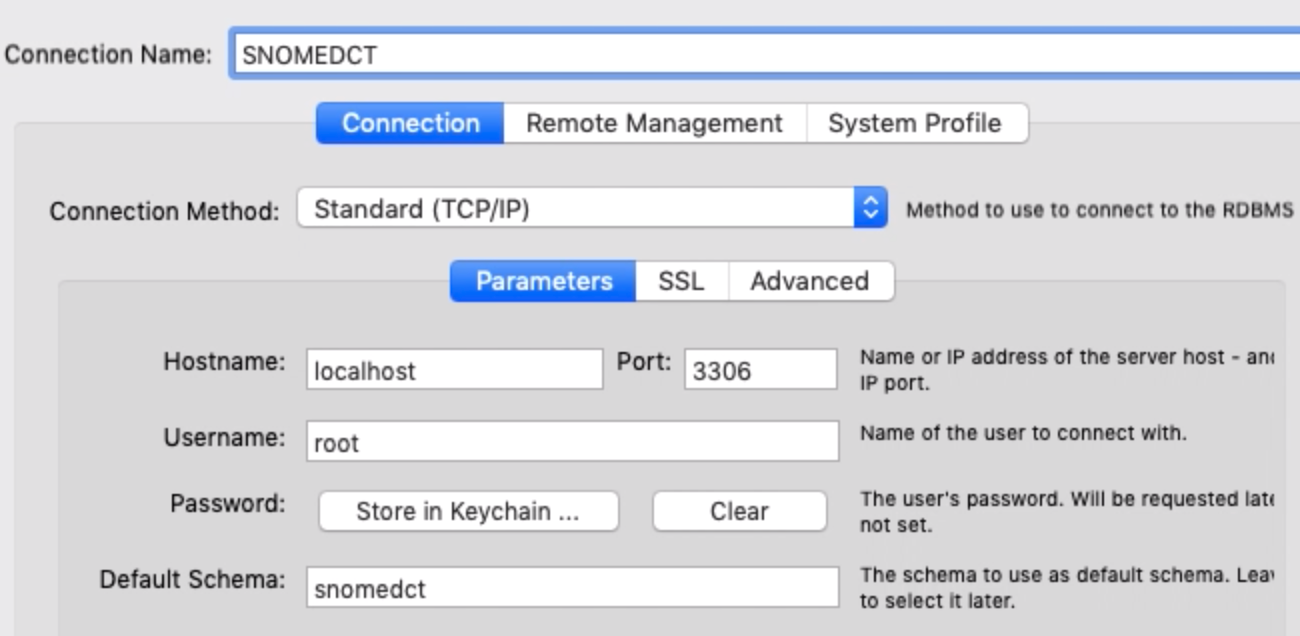
With the newly created connection selected:
* Change the Connection Name to **SNOMEDCT**
* Enter a Default Schema name as **snomedct** (i.e. the name of the newly created database)
* Click the
* Click the button:
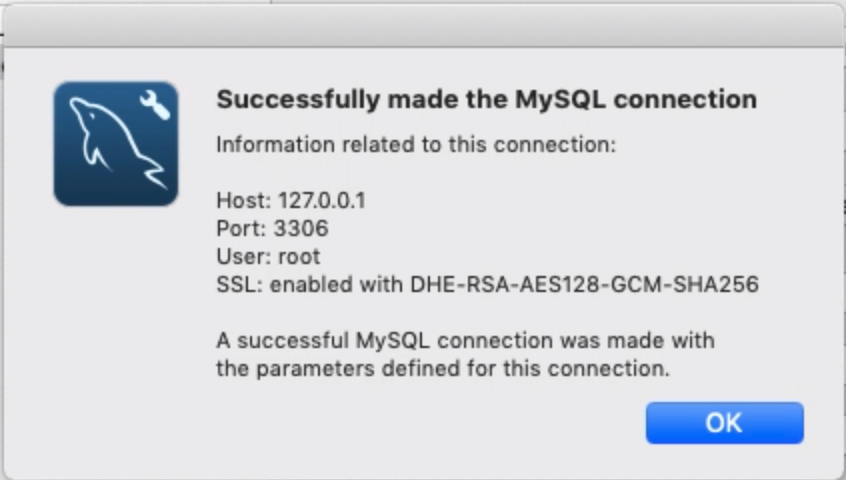
* If the connection is successful you will see the following dialog.
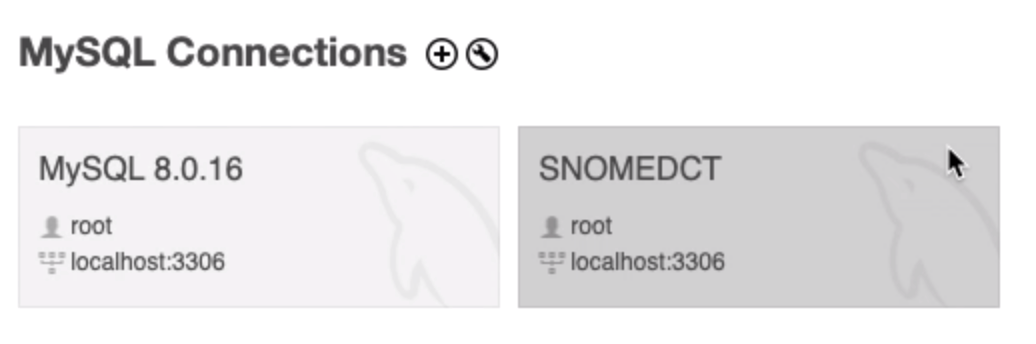
In future when you open MySQL Workbench you will see the option to open the SNOMEDCT connection.
### Save Your MySQL Password in Keychain
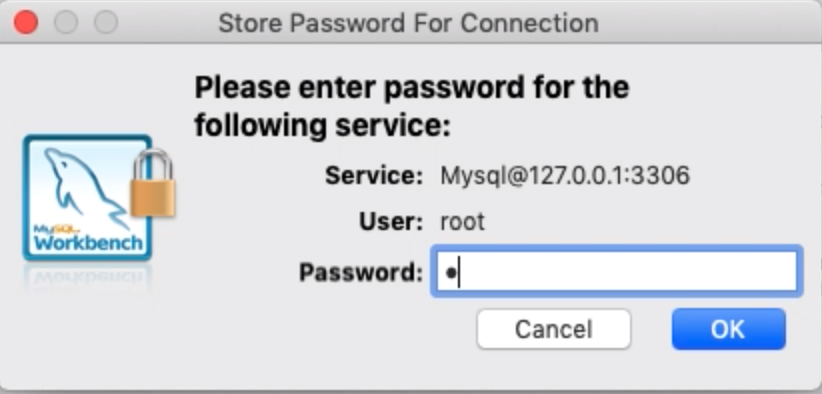
To avoid future prompts for the MySQL Password you can save the password in the Keychain.
* Click the button
* Enter the MySQL password to be stored.
## Testing and Using the SNOMED CT Database
### Open the SNOMEDCT Connection
* Open MySQL Workbench
* Select the SNOMED CT Connection
### Test the SNOMED CT Database
To test the loaded SNOMED CT database open one of the example queries in the **SnomedCtRfsMySql/mysql\_examples** folder.
* Click open SQL button in the toolbar
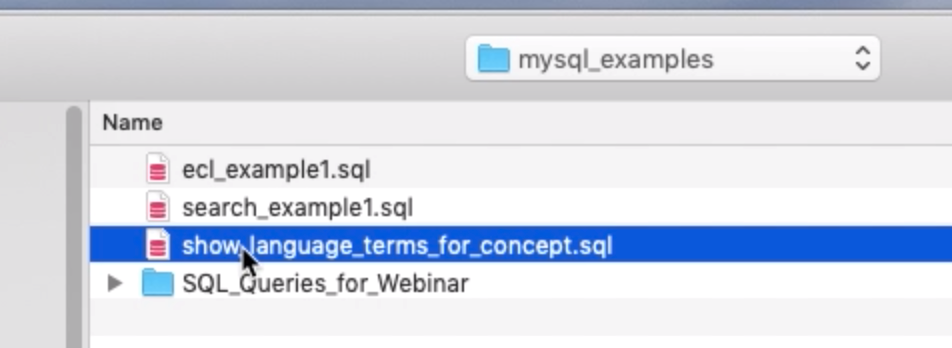
* Find the **mysql\_examples** folder in the SnomedCtRfsMySql subfolder of your home directory.
* Select and open one of the queries
The query should be display as shown below
* Click the lightning icon to run the query
The results of running the query should be displayed as below
### Using the SNOMED CT Database
The SNOMED CT database can be used in different ways:
* Running example SQL queries in the SnomedRfsMySql package.
* Running queries provided as part of a SNOMED CT E-Learning assignment.
* Using example SQL queries as templates for your own queries.
* Running SQL queries you have written yourself from scratch.
You can run your SQL queries in MySQL Workbench as described in the previous section. Additionally these queries can be run using the MySQL command line interface or through a MySQL connector for one of the programming languages listed at: .
{% hint style="danger" %}
If you are using example queries as templates for your own queries alway copy the query first so that you do not overwrite the original example query.
* If you accidentally overwrite an example query, you can download the SnomedRfsMySql.zip file again and extract the example queries folder.
{% endhint %}
## Managing MySQL Accounts
The "root" user account is typically used for importing the SNOMED CT release files. However, you should create additional MySQL accounts for database users that do not have administrator rights. Ideally the name of these MySQL accounts should match the Mac username of the user as this simplifies call the mysql command line tool and the use of MySQL connectors.
To create user accounts in the MySQL Workbench select the **Administration** tab (see below) and select **Users and Privileges** (see below).
### Set up the account details and access permissions.
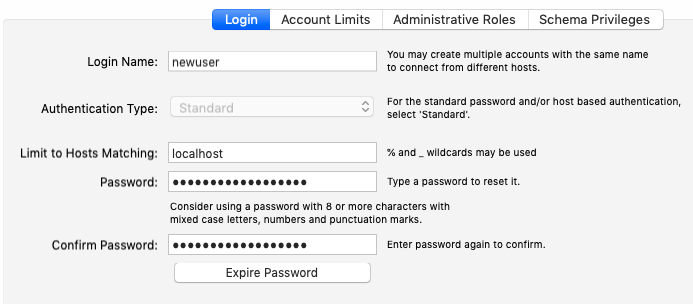
* In this example an account with the username **newuser** account is being created as shown below:
* In the schema privileges the **newuser** is given access to the **snomedct** database schema:
* Within the **snomedct** database the rights of this **newuser** are limited to the following actions.
Provide Feedback
---
# Agent Instructions
This documentation is published with GitBook. GitBook is the documentation platform designed so that both humans and AI agents can read, navigate, and reason over technical content effectively. Learn more at gitbook.com.
## Querying This Documentation
If you need additional information that is not directly available in this page, you can query the documentation by asking a question.
Perform an HTTP GET request on the following URL with the `ask` and `goal` query parameters:
```
GET https://docs.snomed.org/snomed-ct-practical-guides/snomed-ct-sql-practical-guide/appendices/appendix-a-building-the-snomed-ct-example-database/a5-using-mysql-workbench-to-query-snomed-ct.md?ask=&goal=
```
`ask` is the immediate question: it should be specific, self-contained, and written in natural language.
`goal` is what the user is ultimately trying to achieve, the reason they need the answer. Sharing it helps GitBook give you a better, more relevant answer. A goal is most helpful when it describes the outcome the user wants rather than restating the question. For example, with `ask=how do I create an API token`, a goal like `automate deployments from our CI pipeline` lets GitBook tailor the answer to that use case.
The response will contain a direct answer to the question and relevant excerpts and sources from the documentation.
Use this mechanism when the answer is not explicitly present in the current page, you need clarification or additional context, or you want to retrieve related documentation sections.





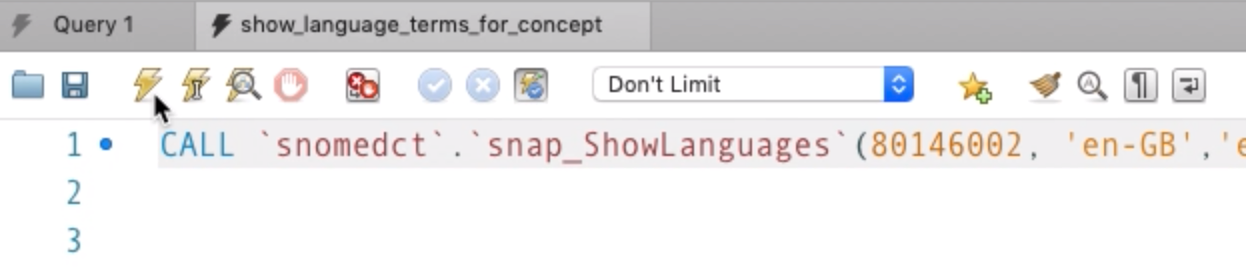
 to run the query
The results of running the query should be displayed as below
to run the query
The results of running the query should be displayed as below