# Create a new task

| Steps                                                                                                                                                                                                                                                                                                                                                                                                                                                                                                                                                                                                                                                                                                                                                                                                                                                                                                                                                                                                                                                                                                                                                                                                                                      | References                                                                                                                                                                                             |
| ------------------------------------------------------------------------------------------------------------------------------------------------------------------------------------------------------------------------------------------------------------------------------------------------------------------------------------------------------------------------------------------------------------------------------------------------------------------------------------------------------------------------------------------------------------------------------------------------------------------------------------------------------------------------------------------------------------------------------------------------------------------------------------------------------------------------------------------------------------------------------------------------------------------------------------------------------------------------------------------------------------------------------------------------------------------------------------------------------------------------------------------------------------------------------------------------------------------------------------------ | ------------------------------------------------------------------------------------------------------------------------------------------------------------------------------------------------------ |
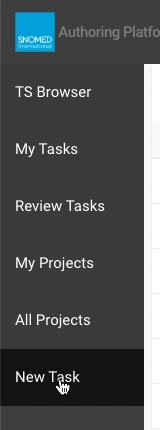
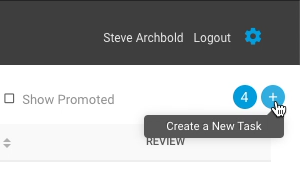
| <p>From the <em>Dashboard - My Tasks</em> view:<br></p><p><strong>EITHER</strong><br>Press <code>New Task</code> in the left-hand menu bar.<br></p><p><strong>OR</strong><br>Press the blue circular <code>+</code> button in the upper right corner of the <em>Dashboard - My Tasks</em> content panel.</p>                                                                                                                                                                                                                                                                                                                                                                                                                                                                                                                                                                                                                                                                                                                                                                                                                                                                                                                               | <div><figure><img src="/files/6aDGvleUadG0WxJMAWNA" alt=""><figcaption></figcaption></figure></div><div><figure><img src="/files/R5EGKCgLxZxRtfUSHNdu" alt=""><figcaption></figcaption></figure></div> |
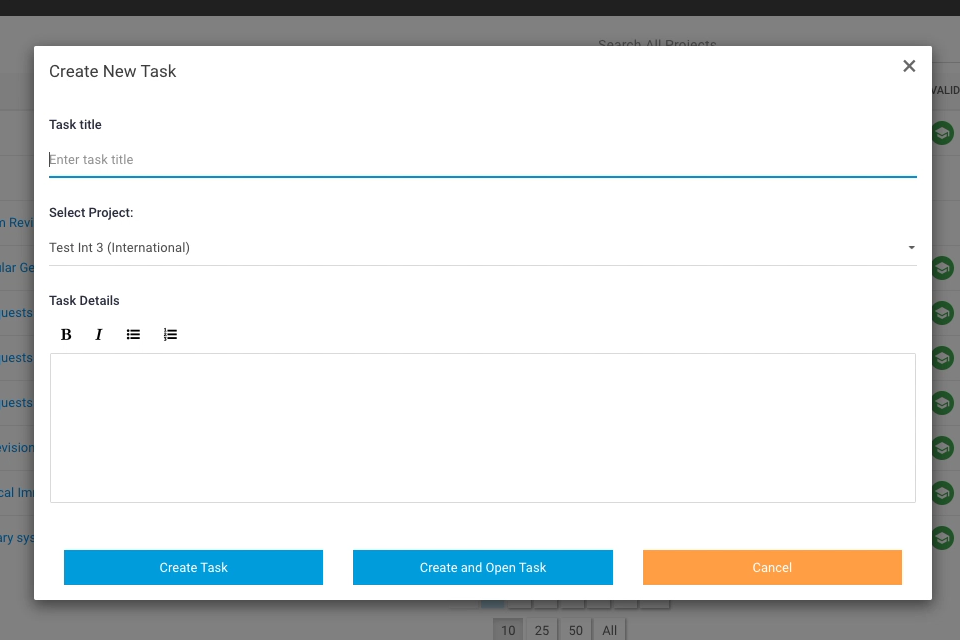
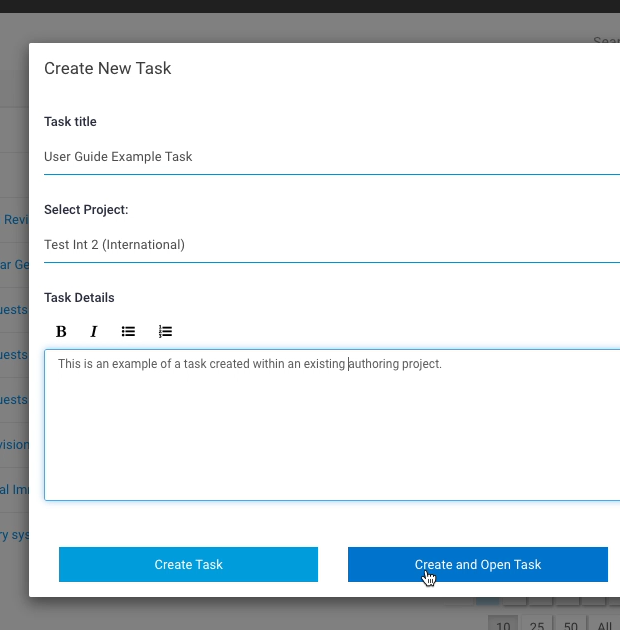
| <p>The <code>Create New Task</code> pop-up form is presented, centred on the page and overlaying the <em>Dashboard - My Tasks</em> view which is dimmed but still visible "below" the form.<br></p><p>This form has three content entry fields, and three calls to action at the bottom of the form:<br></p><ul><li><code>Task title</code> field (required).</li><li><code>Select project</code> drop-down list selector (required).</li><li><code>Task Details</code> optional multi-line rich text field, with a sub-menu for formatting selected contents as bold font, italic font, button list, and numbered sequential list.</li><li><code>Create Task</code> button.</li><li><code>Create and Open Task</code> button.</li><li><code>Cancel</code> button.</li></ul><p><br></p><p>The pop-up form also has a small <code>X</code> button in its top right corner. This has the same effect as the <code>Cancel</code> button.</p>                                                                                                                                                                                                                                                                                                  | <div><figure><img src="/files/zhUN9gC00MkgTpI26KIW" alt=""><figcaption></figcaption></figure></div>                                                                                                    |
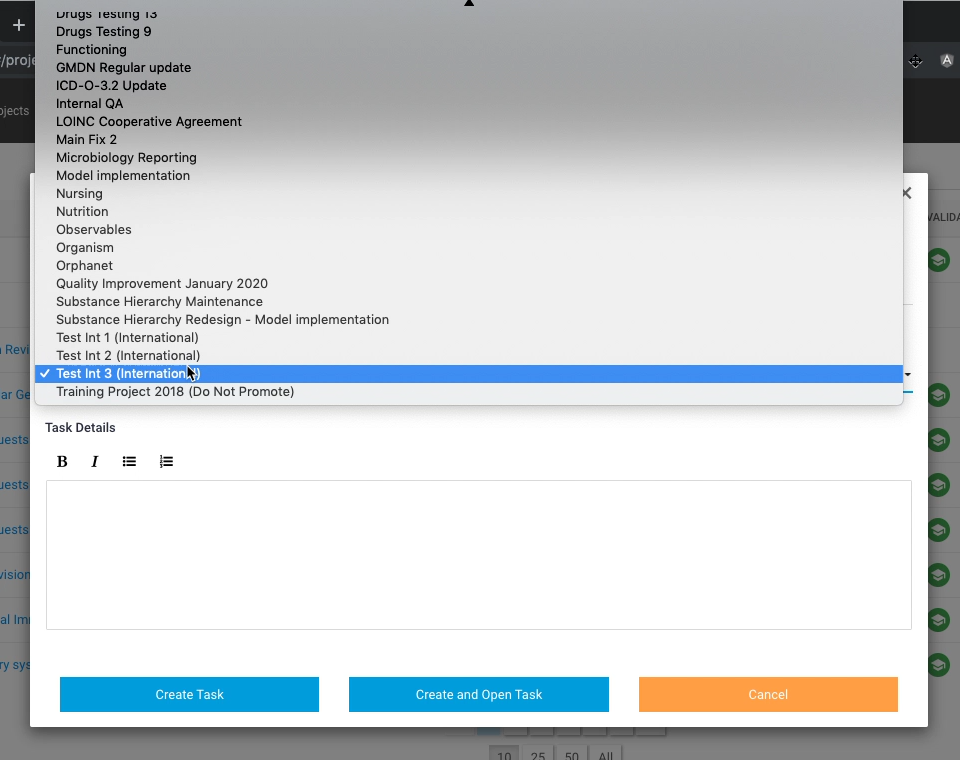
| <p>Enter a single line Task title for identification of this task in the Authoring Platform.<br></p><p>Press <code>Select project</code> to see an overlaid list of all available projects on the Authoring Platform. Pick one from the list by moving the cursor to its title and pressing it, or using the keyboard <code>up-arrow</code> / <code>down-arrow</code> buttons to scroll the list and then press <code>Enter</code> on the desired selection.<br></p><p>Enter some further descriptive text in <code>Task Details</code> and use the text formatting options menu to enhance readability if desired (select some text within the field, then press the desired option button in the menu). This field is optional and can be left blank but some additional background information on the task can often be useful, particularly if many tasks end up with similar titles.</p><div data-gb-custom-block data-tag="hint" data-style="success" class="hint hint-success"><p><strong>Task title</strong><br></p><p>Task titles can be up to 255 characters maximum, but it should be as concise as possible whilst still conveying sufficient information to identify it alongside other text entries in task lists.</p></div> | <div><figure><img src="/files/k7TgkxxEIDmRt73RgDr2" alt=""><figcaption></figcaption></figure></div>                                                                                                    |
| <div data-gb-custom-block data-tag="hint" data-style="warning" class="hint hint-warning"><p><strong>Cancelling the task creation</strong><br></p><p>At any stage up to this point:<br></p><p><strong>EITHER</strong><br>Press <code>Cancel</code><br></p><p><strong>OR</strong><br>Press the top-right corner <code>X</code>,br /></p><p>This will close the form without creating a task (any contents in the fields will be lost), and the original underlying <em>Dashboard - My Tasks</em> view will be restored with no changes.</p></div><div data-gb-custom-block data-tag="hint" data-style="warning" class="hint hint-warning"><p><strong>Can't cancel after requesting creation</strong><br></p><p>Once one of the following steps are taken, the specified task creation cannot be cancelled, however a task can be subsequently deleted if created in error, or it is no longer needed.</p></div>                                                                                                                                                                                                                                                                                                                              | <div><figure><img src="/files/YqEWL7yRy6g0eInhGlp6" alt=""><figcaption></figcaption></figure></div><div><figure><img src="/files/MPYH1UbjSqKY46AlUL9l" alt=""><figcaption></figcaption></figure></div> |
| <p>When the form fields are ready:<br></p><p><strong>EITHER</strong><br>Press <code>Create Task</code><br></p><p><strong>OR</strong><br>Press <code>Create and Open Task</code></p>                                                                                                                                                                                                                                                                                                                                                                                                                                                                                                                                                                                                                                                                                                                                                                                                                                                                                                                                                                                                                                                        | <div><figure><img src="/files/k6orynhRtbnHLfZB5YCa" alt=""><figcaption></figcaption></figure></div>                                                                                                    |
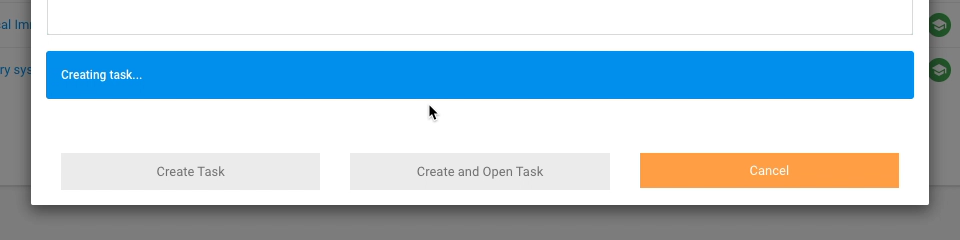
| A full-width "Creating task..." notification banner appears above the call to action buttons (which are greyed out) whilst the task is being set-up - this typically takes a few seconds.                                                                                                                                                                                                                                                                                                                                                                                                                                                                                                                                                                                                                                                                                                                                                                                                                                                                                                                                                                                                                                                  | <div><figure><img src="/files/j8TfQckRDnAdOlt2y6FB" alt=""><figcaption></figcaption></figure></div>                                                                                                    |
| On completion, a "Task initialization complete" notification banner is presented in the page header.                                                                                                                                                                                                                                                                                                                                                                                                                                                                                                                                                                                                                                                                                                                                                                                                                                                                                                                                                                                                                                                                                                                                       | <div><figure><img src="/files/deTnGkxYRTMQNUHO4fWQ" alt=""><figcaption></figcaption></figure></div>                                                                                                    |
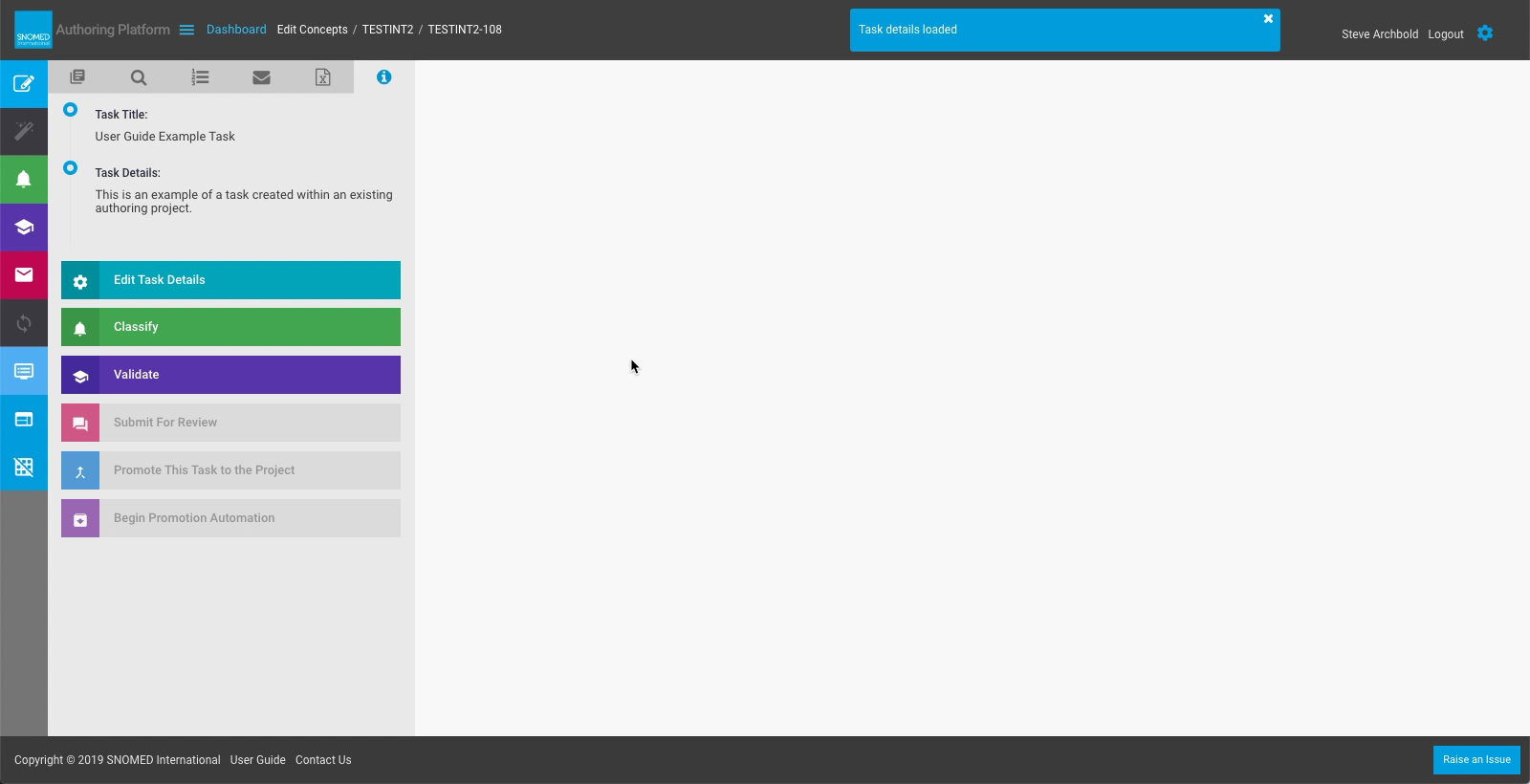
| If `Create Task` was used, then the pop-up form will close and the original underlying *Dashboard My Tasks* view will be restored. The new task title will appear in the task list.If `Create and Open Task` was used, then the pop-up form will close and the task will be opened as if its listing entry link had been followed from the *Dashboard - My Tasks* view, allowing authoring to start immediately within the task.                                                                                                                                                                                                                                                                                                                                                                                                                                                                                                                                                                                                                                                                                                                                                                                                           | <div><figure><img src="/files/MDaOdJWVu5TafAMFlCQQ" alt=""><figcaption></figcaption></figure></div><div><figure><img src="/files/Xfk3Rzy9TbvpBfAwZaIo" alt=""><figcaption></figcaption></figure></div> |

<a href="https://docs.google.com/forms/d/e/1FAIpQLScTmbZIf0UEQwYDkY27EEWBkaiYkHSbR0_9DmFrMLXoQLyL7Q/viewform?usp=pp_url&#x26;entry.1767247133=AP+UG&#x26;entry.670899847=Create%20a%20new%20task" class="button primary">Provide Feedback</a>


---

# Agent Instructions: Querying This Documentation

If you need additional information that is not directly available in this page, you can query the documentation dynamically by asking a question.

Perform an HTTP GET request on the current page URL with the `ask` query parameter:

```
GET https://docs.snomed.org/snomed-ct-user-guides/authoring-user-guide/how-to/dashboard/create-a-new-task.md?ask=<question>
```

The question should be specific, self-contained, and written in natural language.
The response will contain a direct answer to the question and relevant excerpts and sources from the documentation.

Use this mechanism when the answer is not explicitly present in the current page, you need clarification or additional context, or you want to retrieve related documentation sections.