# Promote a project (promote to MAIN)

| Steps                                                                                                                                                                                                                                                                                                                                                                                                                                                                                                                                                                                                                                                                                                                                                                                                                                                                                                                                                                                                                                                                                                                                                                                                                                                                                                                                                                                                                                                                                                                                                                                                                                                                                                                                                                                                                                                                                                                                                                                                                                                                                                                                                                                                            | References                                                                                                                                                                                                                                                                 |
| ---------------------------------------------------------------------------------------------------------------------------------------------------------------------------------------------------------------------------------------------------------------------------------------------------------------------------------------------------------------------------------------------------------------------------------------------------------------------------------------------------------------------------------------------------------------------------------------------------------------------------------------------------------------------------------------------------------------------------------------------------------------------------------------------------------------------------------------------------------------------------------------------------------------------------------------------------------------------------------------------------------------------------------------------------------------------------------------------------------------------------------------------------------------------------------------------------------------------------------------------------------------------------------------------------------------------------------------------------------------------------------------------------------------------------------------------------------------------------------------------------------------------------------------------------------------------------------------------------------------------------------------------------------------------------------------------------------------------------------------------------------------------------------------------------------------------------------------------------------------------------------------------------------------------------------------------------------------------------------------------------------------------------------------------------------------------------------------------------------------------------------------------------------------------------------------------------------------- | -------------------------------------------------------------------------------------------------------------------------------------------------------------------------------------------------------------------------------------------------------------------------- |
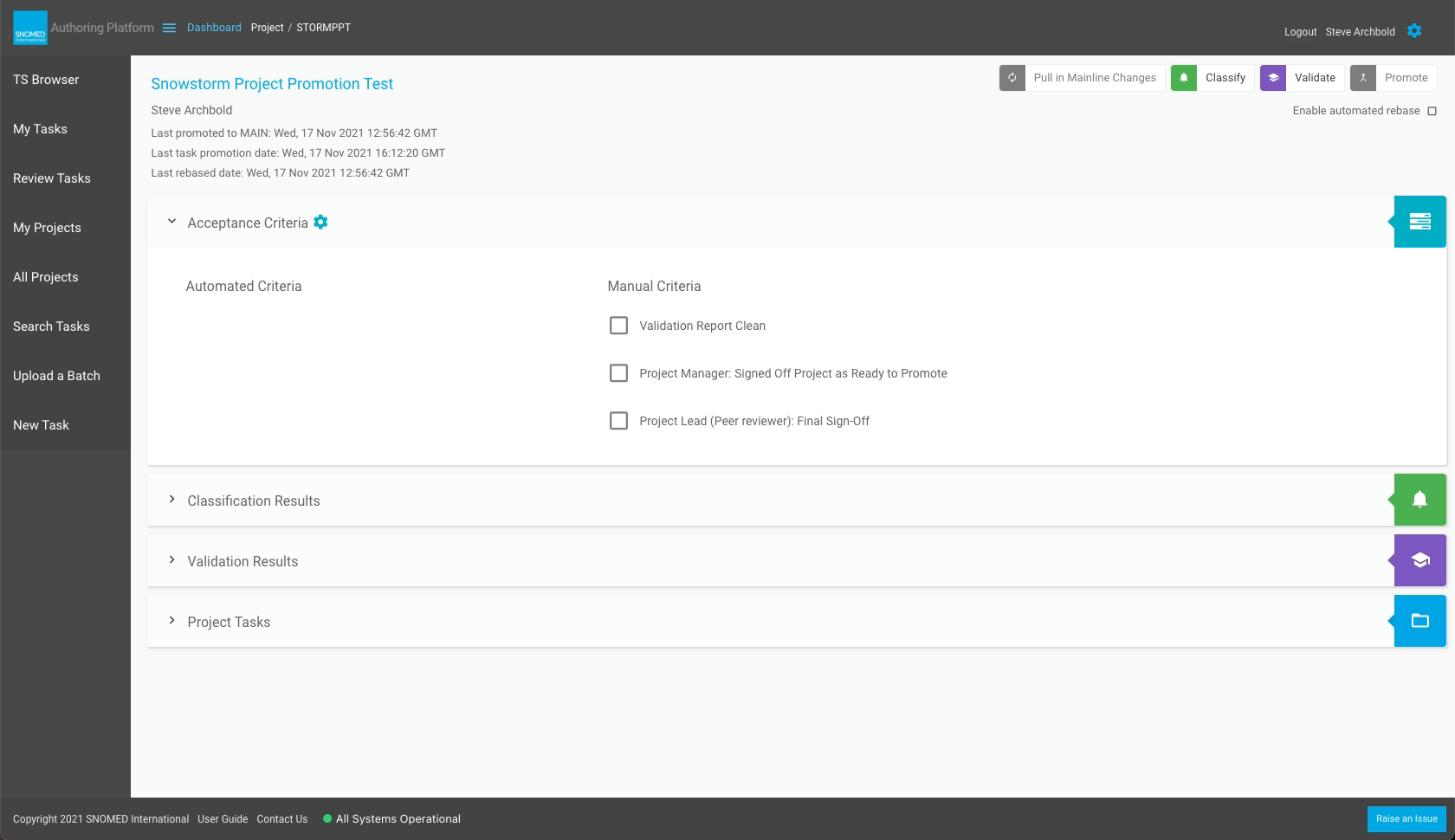
| <p><strong>Project-level SAC</strong> are presented in the <em>Project View</em> as two lists within the <em>Acceptance Criteria</em> accordion-style expandable/collapsible content section, located below the <em>Project Details</em> and above the <em>Classification Results</em> section.<br></p><p><strong>Automated Project-level SAC</strong> are listed to the left, with <strong>Manual Project-level SAC</strong> to the right.<br></p><p>Automated SAC have a yellow warning triangle icon if not yet met, and a green tick if their automated system checks confirm they are satisfied.<br></p><p>Manual SAC are presented initially as open checkboxes, each of which can be interactively signed-off (green-ticked) when the user's role-based access permissions match those configured for that SAC control.<br></p><p>For many projects it may be appropriate to only enable Manual SAC. In this case the Automated Criteria heading is still present, but that list is empty, and the project may then be promoted when all Manual SAC are signed-off.<br></p><p>Particular manual SAC require a specific role to be able to sign-off, such as PROJECT\_LEAD, so more than one person may be needed to get all SAC satisfied, and those without a required role will see the current status of those SAC, but will not be able to change it.<br></p><div data-gb-custom-block data-tag="hint" data-style="info" class="hint hint-info"><p><strong>SAC Definitions and Acceptance Roles</strong><br></p><p>With more frequent delivery of SNOMED CT releases, project-level SAC are an essential aspect of the International Edition content quality control process. However, it is technically feasible for projects not to have project-level SAC defined, and some may have Manual SAC but no Automated SAC or vice versa.<br></p><p>Project-level (and task-level) SAC definitions can be set by those who have the PROJECT\_MANAGER role, usually in close consultation with those in the PROJECT\_LEAD and RELEASE\_LEAD roles.Individual user accounts may also be granted more than one access control role (via membership of the appropriate access control groups).<br></p></div> | <div><figure><img src="https://956592758-files.gitbook.io/~/files/v0/b/gitbook-x-prod.appspot.com/o/spaces%2FO8kNzHFIgz2UFgwrcB08%2Fuploads%2Fgit-blob-a3bd183f0a87a0802a26787a97d81c569be6ba91%2F137251657.png?alt=media" alt=""><figcaption></figcaption></figure></div> |
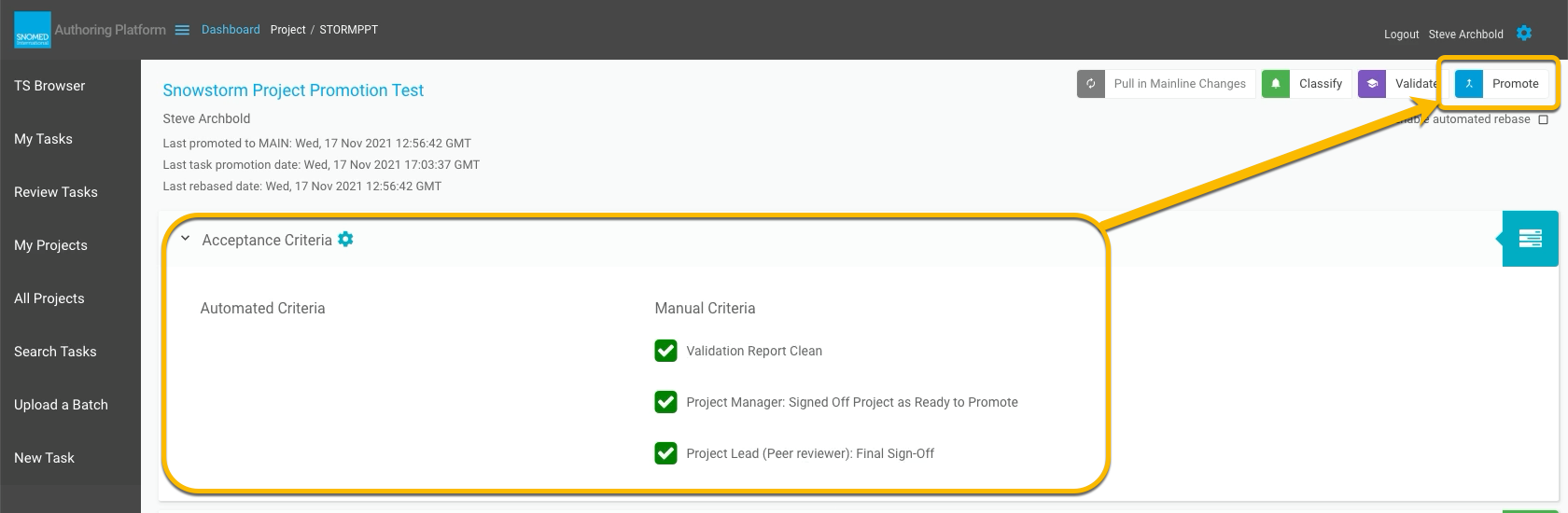
| When all mandatory project-level SAC are satisfied, the project is not diverged, and the project configuration enables promotion, the Promote button will be active for those with the PROJECT\_LEAD role.                                                                                                                                                                                                                                                                                                                                                                                                                                                                                                                                                                                                                                                                                                                                                                                                                                                                                                                                                                                                                                                                                                                                                                                                                                                                                                                                                                                                                                                                                                                                                                                                                                                                                                                                                                                                                                                                                                                                                                                                       | <div><figure><img src="https://956592758-files.gitbook.io/~/files/v0/b/gitbook-x-prod.appspot.com/o/spaces%2FO8kNzHFIgz2UFgwrcB08%2Fuploads%2Fgit-blob-7bffc630d68d11c4b28359a140ec7174e441912e%2F137251658.png?alt=media" alt=""><figcaption></figcaption></figure></div> |
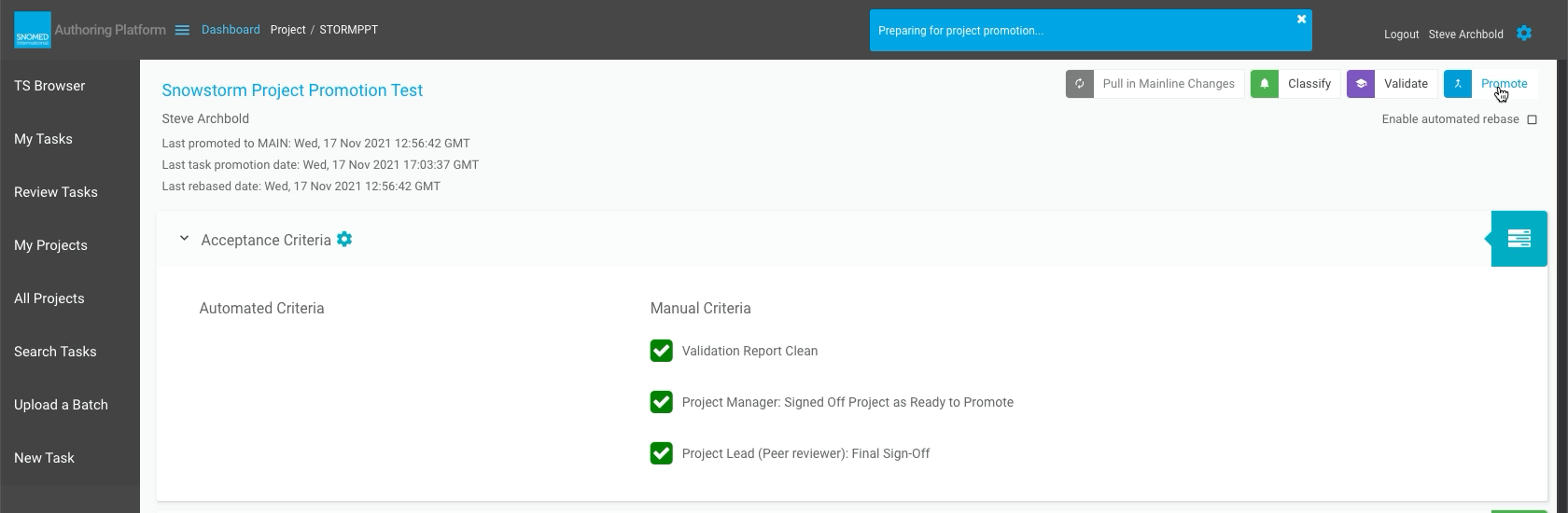
| <p>Press Promote to promote the project contents to the mainline branch.<br></p><p>A "Preparing for project promotion..." notification is presented in the page header.</p>                                                                                                                                                                                                                                                                                                                                                                                                                                                                                                                                                                                                                                                                                                                                                                                                                                                                                                                                                                                                                                                                                                                                                                                                                                                                                                                                                                                                                                                                                                                                                                                                                                                                                                                                                                                                                                                                                                                                                                                                                                      | <div><figure><img src="https://956592758-files.gitbook.io/~/files/v0/b/gitbook-x-prod.appspot.com/o/spaces%2FO8kNzHFIgz2UFgwrcB08%2Fuploads%2Fgit-blob-49b81169f61c0c3d61c1b3b038cc99acf29c8232%2F137251654.png?alt=media" alt=""><figcaption></figcaption></figure></div> |
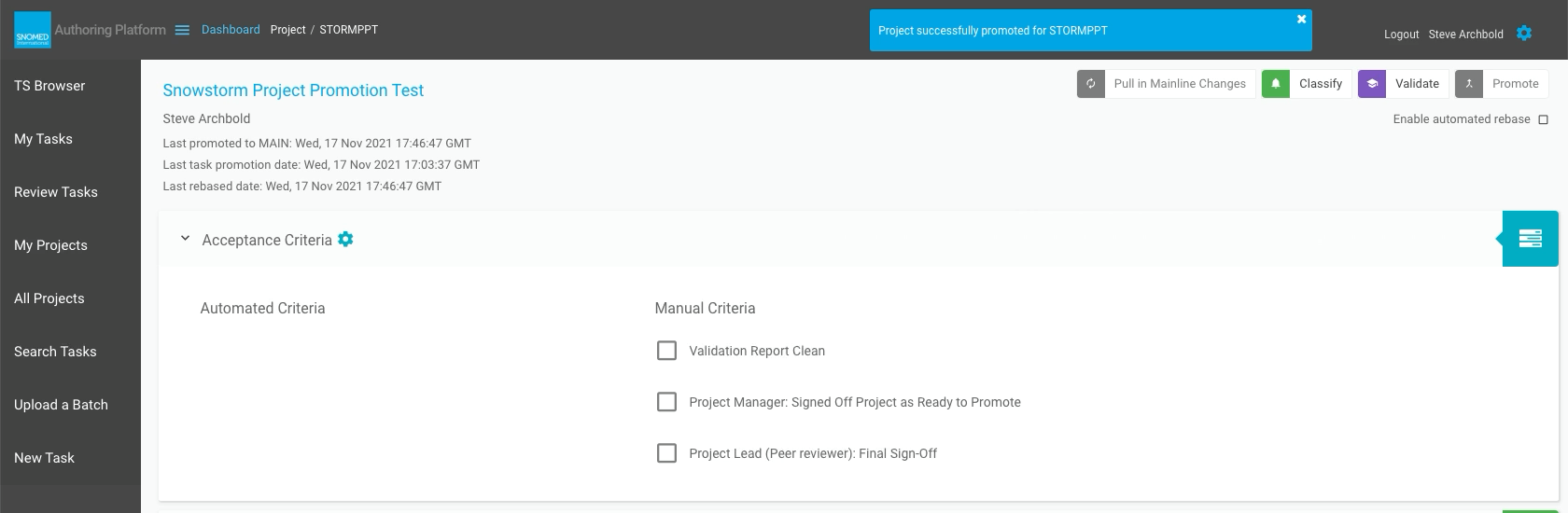
| <p>On completion of the promotion process, a "Project successfully promoted for " notification is presented in the page header, and the Project-level SAC are reset (if so configured in their definition - see the info panel), ready for the next cycle of project content updates.</p><div data-gb-custom-block data-tag="hint" data-style="info" class="hint hint-info"><p><strong>SAC Definitions and Acceptance Roles</strong><br></p><p>Usual configuration practice is to set Project-level SAC to automatically reset to the "unsatisfied" state when project content is promoted to the parent mainline branch. This is in anticipation of subsequent, often repeated, project content updates from its authoring tasks, within each mainline release version authoring cycle. Such resetting ensures that these checks are re-confirmed before promoting project content, and hence reduces the risk of unexpected content changes reaching the project mainline.<br></p><p>However, since this is a configuration option, there may be scenarios in which the "satisfied" status is maintained across project promotions once it has been set. Such authoring process decisions are the remit of those with the PROJECT\_MANAGER and/or PROJECT\_LEAD role(s) to identify and confirm for the relevant content releases.</p></div>                                                                                                                                                                                                                                                                                                                                                                                                                                                                                                                                                                                                                                                                                                                                                                                                                                                                   | <div><figure><img src="https://956592758-files.gitbook.io/~/files/v0/b/gitbook-x-prod.appspot.com/o/spaces%2FO8kNzHFIgz2UFgwrcB08%2Fuploads%2Fgit-blob-5042f33d9a7bccc0c5a7cea35d5c16881aacbf1e%2F137251656.png?alt=media" alt=""><figcaption></figcaption></figure></div> |

<a href="https://docs.google.com/forms/d/e/1FAIpQLScTmbZIf0UEQwYDkY27EEWBkaiYkHSbR0_9DmFrMLXoQLyL7Q/viewform?usp=pp_url&#x26;entry.1767247133=AP+UG&#x26;entry.670899847=Promote%20a%20project%20%28promote%20to%20MAIN%29" class="button primary">Provide Feedback</a>


---

# Agent Instructions: Querying This Documentation

If you need additional information that is not directly available in this page, you can query the documentation dynamically by asking a question.

Perform an HTTP GET request on the current page URL with the `ask` query parameter:

```
GET https://docs.snomed.org/snomed-ct-user-guides/authoring-user-guide/how-to/project-rebase-and-promotion/promote-a-project-promote-to-main.md?ask=<question>
```

The question should be specific, self-contained, and written in natural language.
The response will contain a direct answer to the question and relevant excerpts and sources from the documentation.

Use this mechanism when the answer is not explicitly present in the current page, you need clarification or additional context, or you want to retrieve related documentation sections.