# Update content via batch upload

| Steps                                                                                                                                                                                                                                                                                                                                                                                                                                                                                                                                                                                                                                                                                                                                                                                                                                                                                                                                                                                                                                                                                     | References                                                                                                                                                                                             |
| ----------------------------------------------------------------------------------------------------------------------------------------------------------------------------------------------------------------------------------------------------------------------------------------------------------------------------------------------------------------------------------------------------------------------------------------------------------------------------------------------------------------------------------------------------------------------------------------------------------------------------------------------------------------------------------------------------------------------------------------------------------------------------------------------------------------------------------------------------------------------------------------------------------------------------------------------------------------------------------------------------------------------------------------------------------------------------------------- | ------------------------------------------------------------------------------------------------------------------------------------------------------------------------------------------------------ |
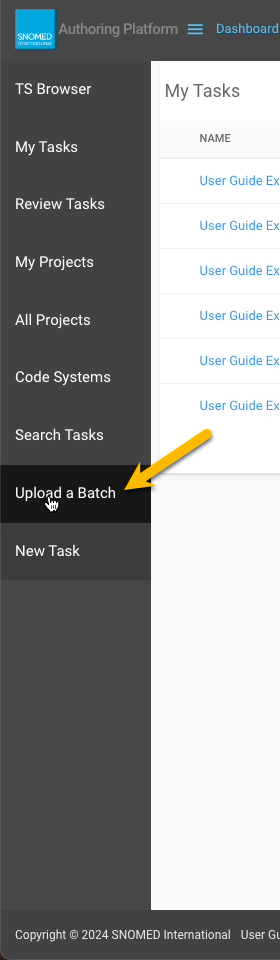
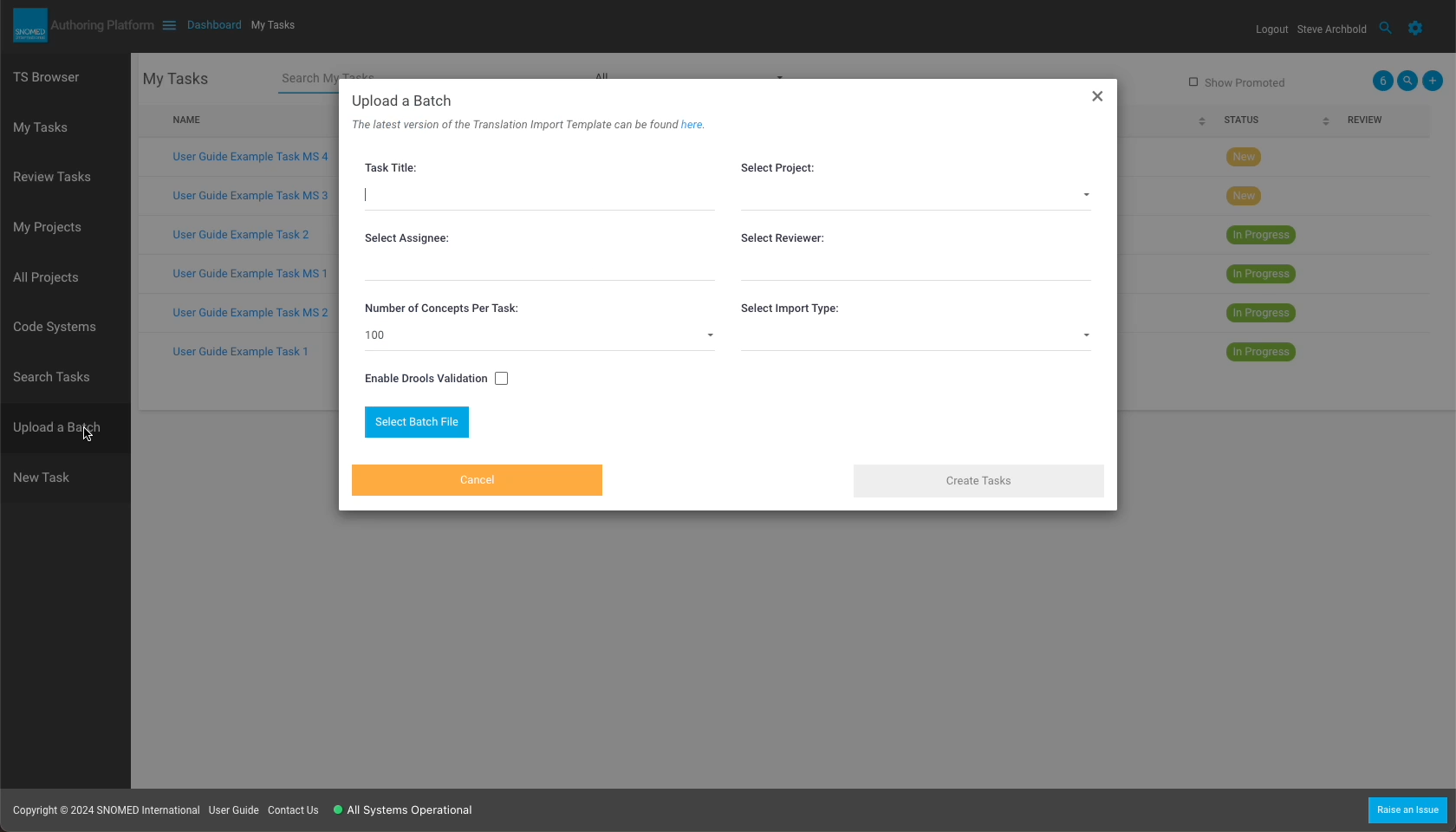
| Press `Upload a Batch` in the left-hand navigation menu. The *Upload a Batch* dialogue box is overlaid on the screen.                                                                                                                                                                                                                                                                                                                                                                                                                                                                                                                                                                                                                                                                                                                                                                                                                                                                                                                                                                     | <div><figure><img src="/files/90yK7gHGeDGPQVXF06Zu" alt=""><figcaption></figcaption></figure></div><div><figure><img src="/files/AVlfRrzIHyXnwSrD8geq" alt=""><figcaption></figcaption></figure></div> |
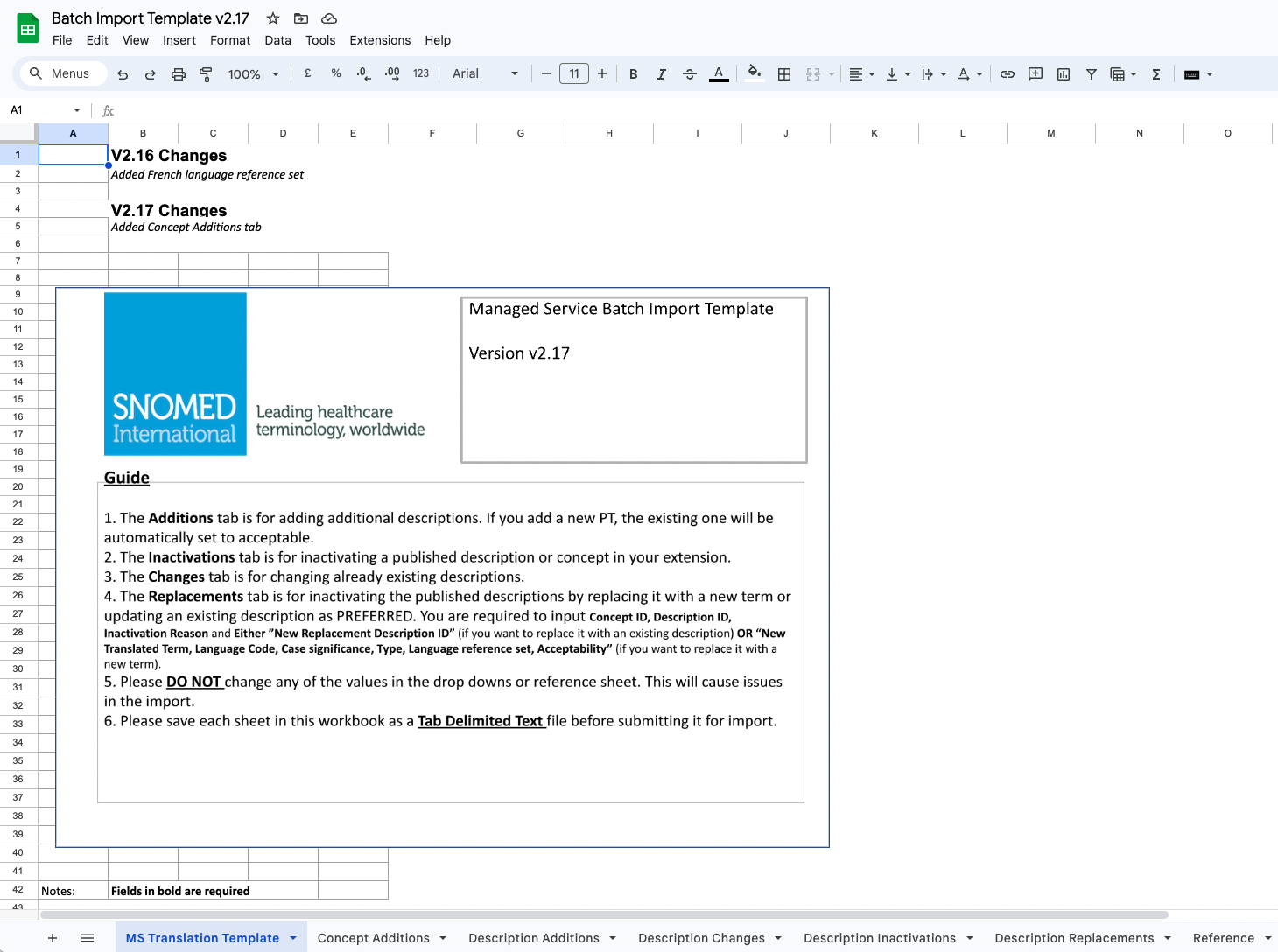
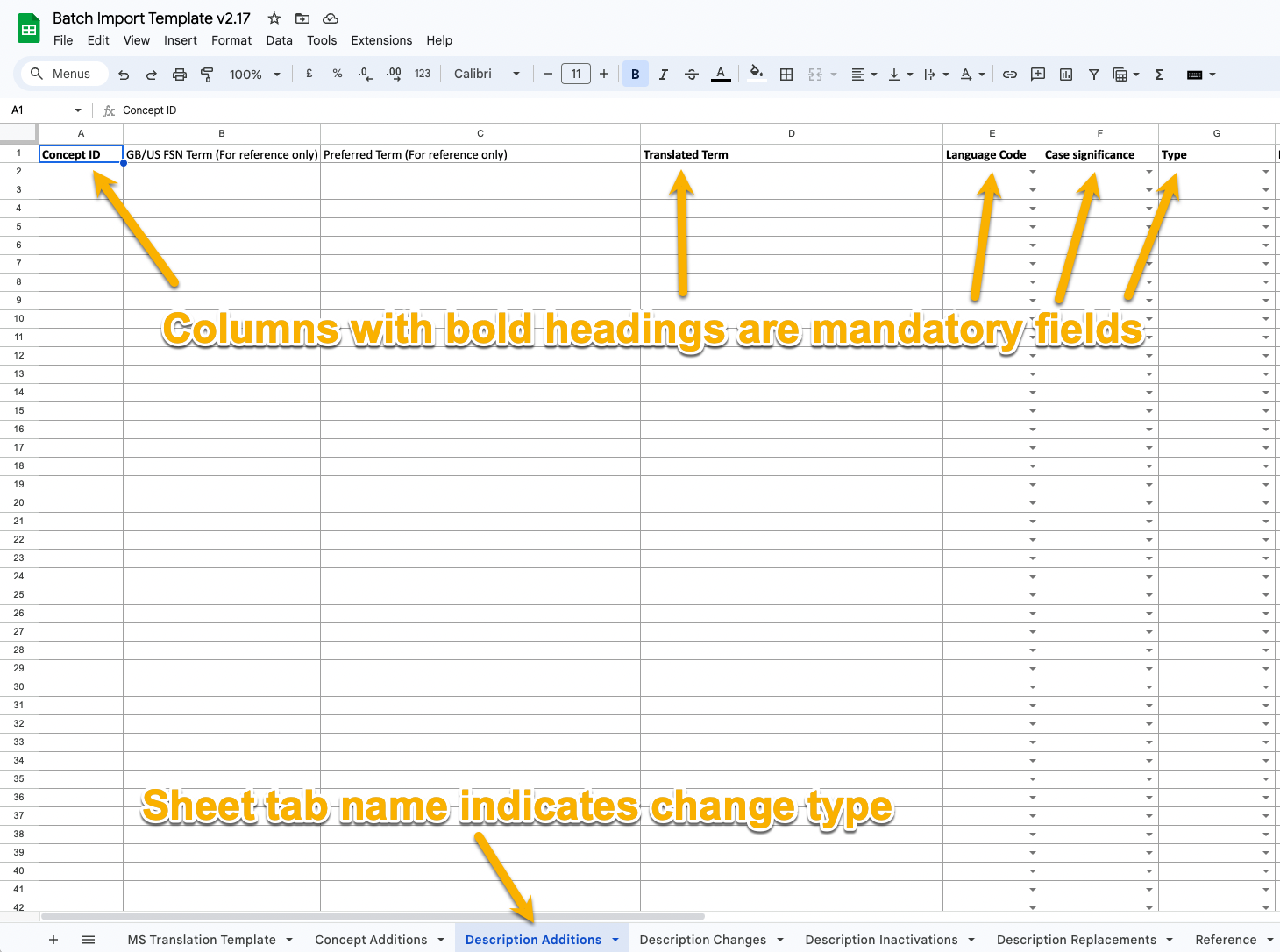
| <p>Download the latest version of the <em>Translation Import Template (Batch Upload)</em> template file using the <code>here</code> link in the text below the dialogue box title.<br></p><p>The <code>Batch Upload</code> template is a spreadsheet in Microsoft .xslx format, with multiple tabs corresponding to the type of batch change supported.</p>                                                                                                                                                                                                                                                                                                                                                                                                                                                                                                                                                                                                                                                                                                                               | <div><figure><img src="/files/idkl3exBR7Tui99rO4Do" alt=""><figcaption></figcaption></figure></div><div><figure><img src="/files/l7ScvWrw9OUfxgLUWgVQ" alt=""><figcaption></figcaption></figure></div> |
| <p>Follow the instructions in the first tab to define a set of changes in the appropriate sheet tab, then download that tab as a local file in <code>.tsv</code> (tab separated values) format.<br></p>                                                                                                                                                                                                                                                                                                                                                                                                                                                                                                                                                                                                                                                                                                                                                                                                                                                                                   | <div><figure><img src="/files/nRXlwg0sx78aq3U4ISaL" alt=""><figcaption></figcaption></figure></div>                                                                                                    |
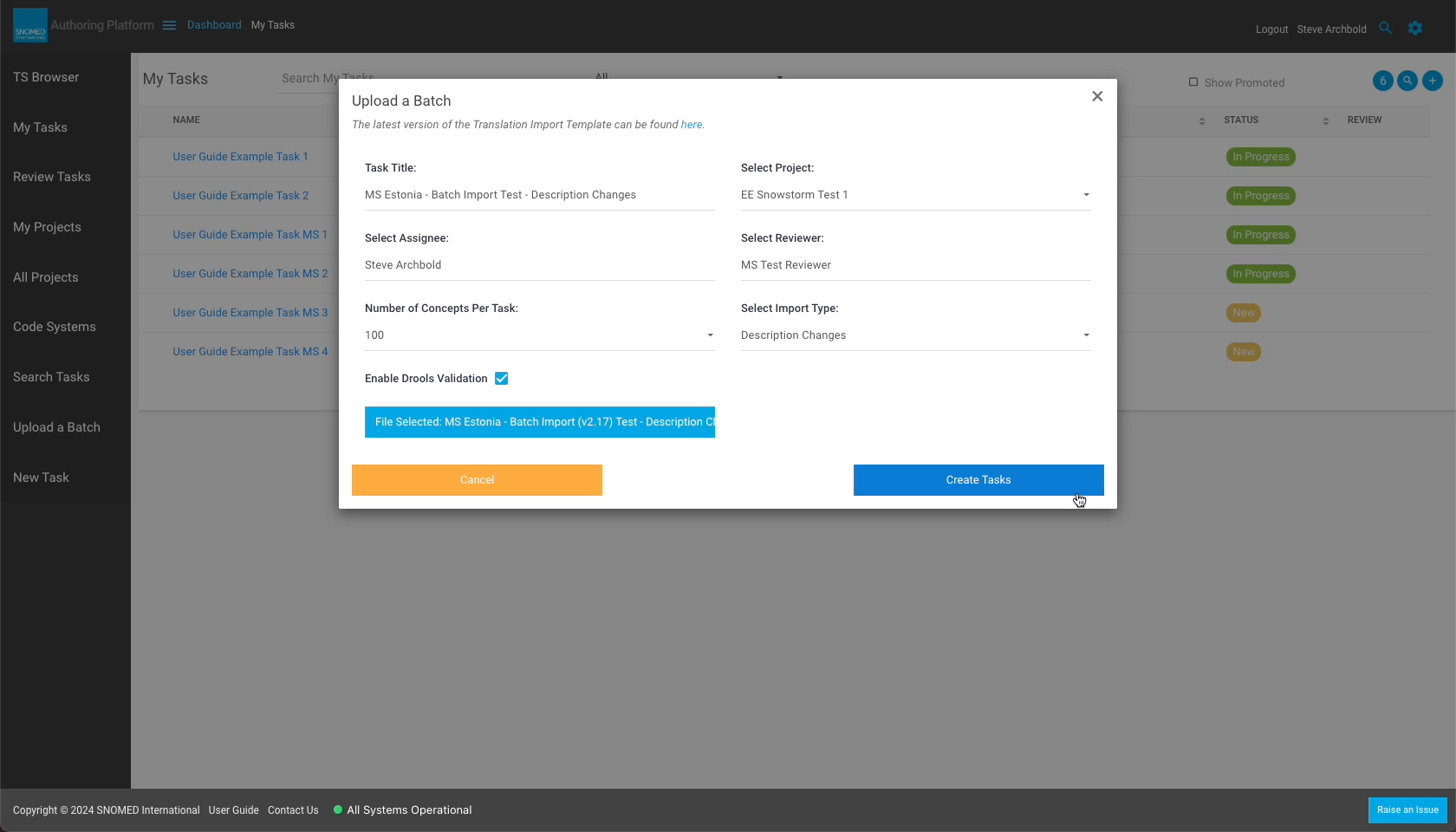
| <p>Once the desired changes are specified and available in a local <code>.tsv</code> file, return to the <em>Upload a Batch</em> dialogue to specify the upload with:<br></p><ul><li><strong>Task Title</strong></li><li><strong>Select Assignee</strong> (type-ahead search for names list)</li><li><strong>Number of Concepts per Task</strong> (select from preset list, default is 100)</li><li><strong>Enable Drools Validation</strong> (optional)</li><li><strong>Select Project</strong> (from available projects list)</li><li><strong>Select Reviewer</strong> (type-ahead search for names list)</li><li><strong>Select Import Type</strong> (from available list matching the <code>Batch Upload</code> template change type tabs)</li><li><strong>Select Batch File</strong> (invokes your local machine's file selection dialogue to pick the relevant <code>.tsv</code> file)</li></ul><p>When all required parameters are defined, the <code>Create Tasks</code> button will be enabled.<br></p><p>Press <code>Create Tasks</code> to start the batch upload process.</p> | <div><figure><img src="/files/Pxz7TLNFopjKrBVkIYJS" alt=""><figcaption></figcaption></figure></div>                                                                                                    |
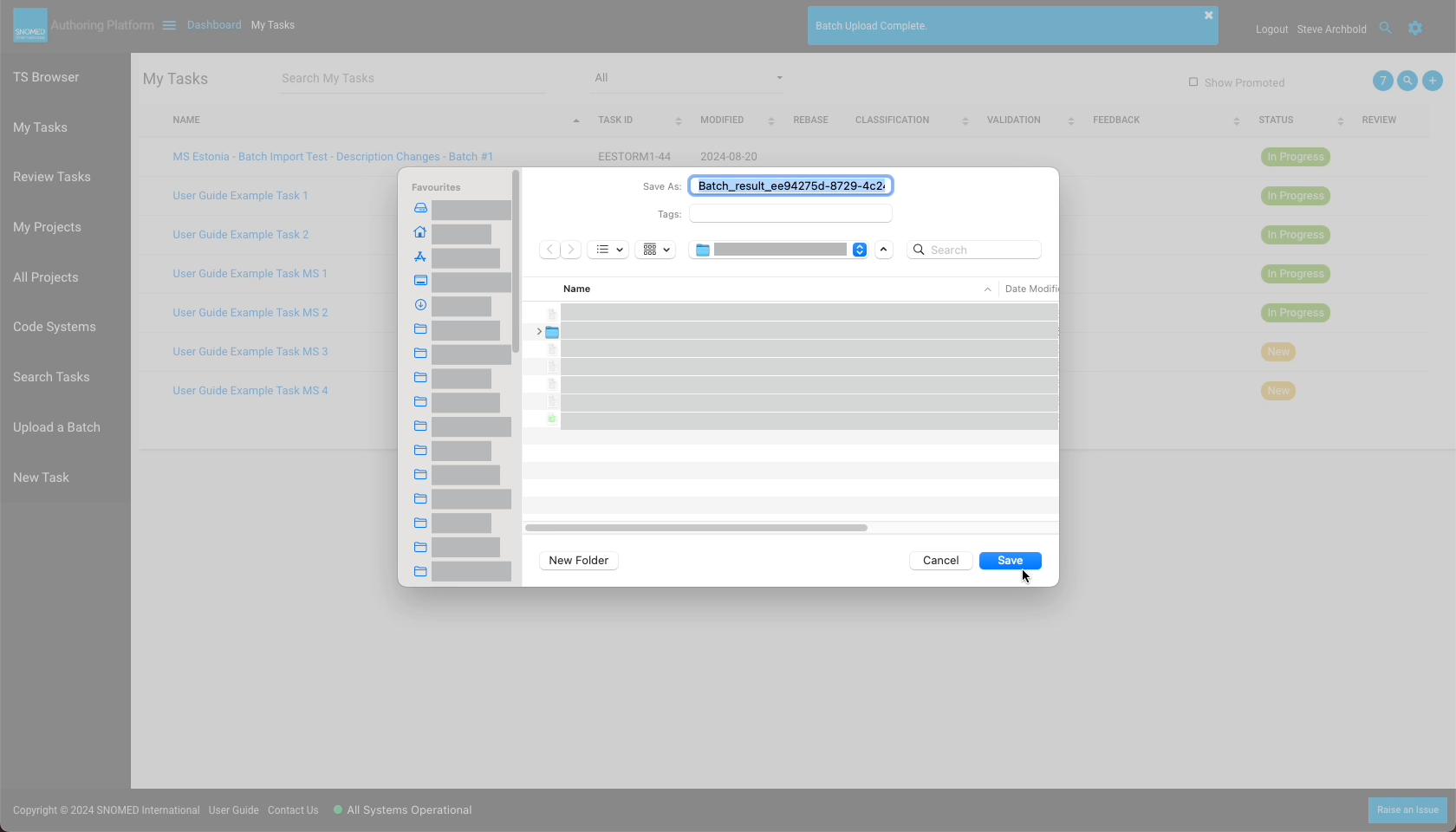
| On successful completion of the batch upload, the *Batch Upload Complete* header notification will appear, and a local machine file save dialogue box will be presented to allow local saving of a batch results `.tsv` file with the outcome of the upload process.                                                                                                                                                                                                                                                                                                                                                                                                                                                                                                                                                                                                                                                                                                                                                                                                                      | <div><figure><img src="/files/Dergd1RzxOoj5bv5afN5" alt=""><figcaption></figcaption></figure></div><div><figure><img src="/files/MmmC6vauWzaTu2sdoM08" alt=""><figcaption></figcaption></figure></div> |
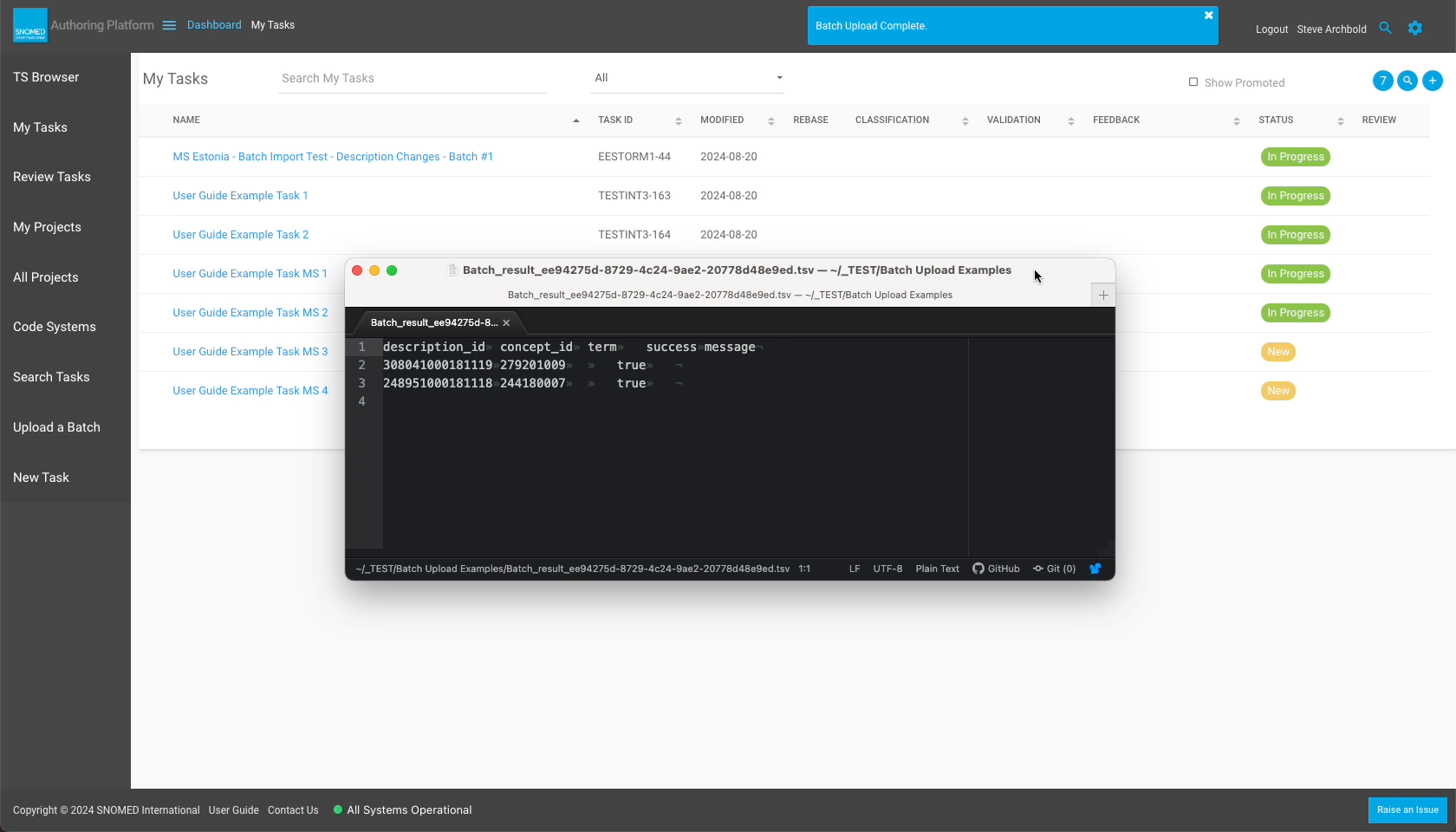
| <p>Opening the batch result <code>.tsv</code> file on your local machine will show tab separated values with a row corresponding to each change row in the upload file. The final column of the results data indicates the outcome of the upload for that row (<code>true</code> for success).<br></p><p>The <code>My Tasks</code> dashboard view will also be updated to show the task(s) created by the batch upload, which carry the related content changes.</p>                                                                                                                                                                                                                                                                                                                                                                                                                                                                                                                                                                                                                      | <div><figure><img src="/files/MjNDjI3lxpE8aPC84xms" alt=""><figcaption></figcaption></figure></div>                                                                                                    |
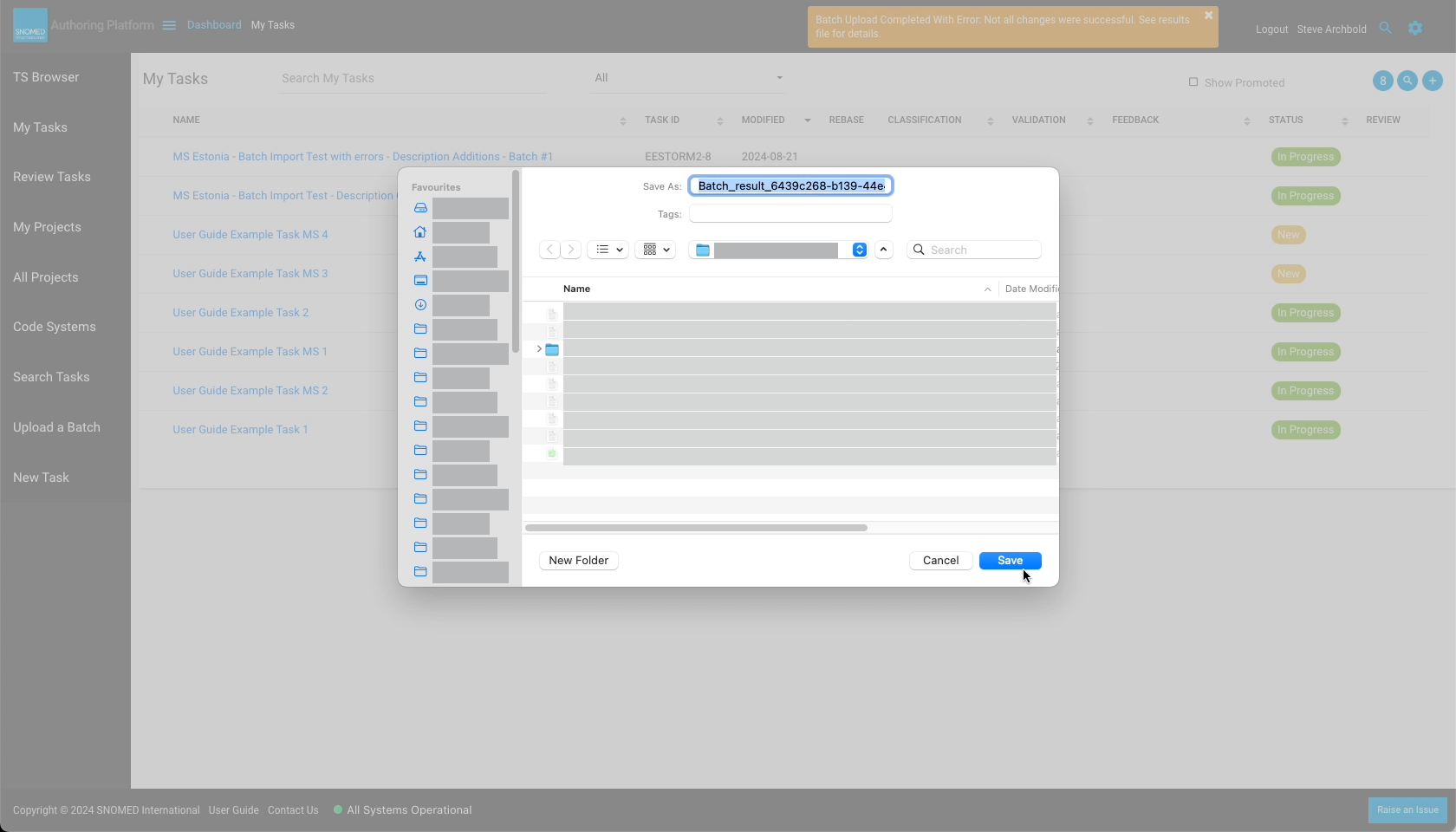
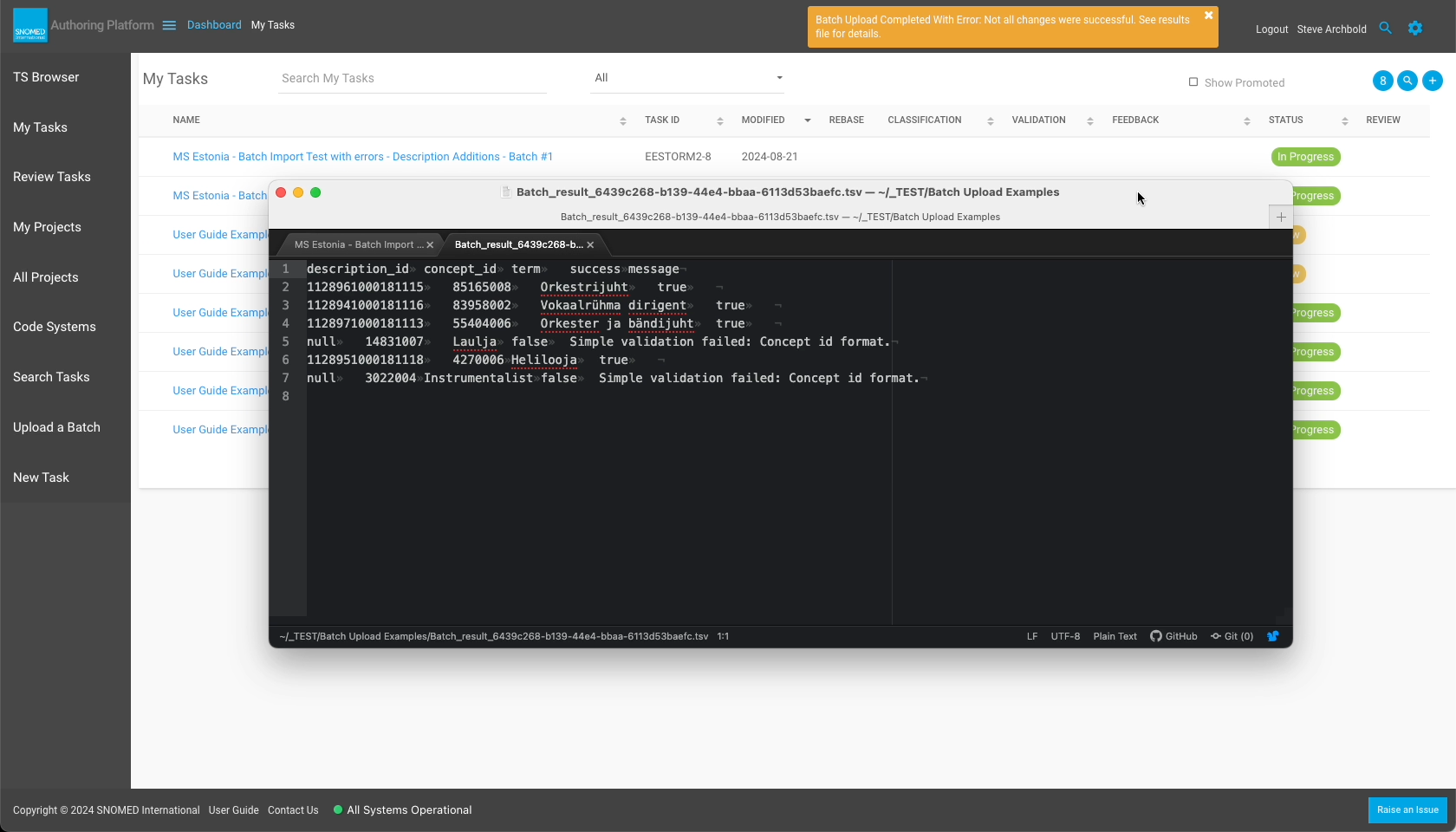
| If an error is encountered during batch processing of particular rows, whilst other changes are successful, the `Batch Upload Completed With Errors` header banner will be presented.                                                                                                                                                                                                                                                                                                                                                                                                                                                                                                                                                                                                                                                                                                                                                                                                                                                                                                     | <div><figure><img src="https://github.com/SNOMED-Documents/snomed-authoring-userguide/blob/main/how-to/task-batch/images/250544739.png" alt=""><figcaption></figcaption></figure></div>                |
| In either of these failure cases, a batch result `.tsv` file is generated.The local operating system file download dialogue is invoked to allow saving of the batch result file.                                                                                                                                                                                                                                                                                                                                                                                                                                                                                                                                                                                                                                                                                                                                                                                                                                                                                                          | <div><figure><img src="/files/XMpNx5y9oo8pl3aJZsFq" alt=""><figcaption></figcaption></figure></div>                                                                                                    |
| Inspecting the batch result file shows further information to help understand the failure cause(s) for the rows which could not be processed successfully.                                                                                                                                                                                                                                                                                                                                                                                                                                                                                                                                                                                                                                                                                                                                                                                                                                                                                                                                | <div><figure><img src="/files/ESuroUuxFH2veJtBDwPy" alt=""><figcaption></figcaption></figure></div>                                                                                                    |
| <p>If the batch upload process fails during parsing of the upload file, the <code>Batch Upload Failed</code> header notification will be presented.<br></p><p>The header notification includes additional diagnostic information, but a results file is not generated.<br></p><div data-gb-custom-block data-tag="hint" data-style="info" class="hint hint-info"><p><strong>Out of date batch template format</strong><br></p><p>This scenario may be caused by trying to upload batch changes using an earlier version of the template file rather than the latest version expected by the Authoring Platform. The screenshot shows an example of the error message when this occurs.</p><p>To resolve this error condition, download the latest version of the template (described above), and enter and save the required change data using the updated specification format, and then repeat the upload process with the updated format file.</p></div>                                                                                                                               | <div><figure><img src="/files/ljmufhBvXfftFmZM1ylj" alt=""><figcaption></figcaption></figure></div>                                                                                                    |

<a href="https://docs.google.com/forms/d/e/1FAIpQLScTmbZIf0UEQwYDkY27EEWBkaiYkHSbR0_9DmFrMLXoQLyL7Q/viewform?usp=pp_url&#x26;entry.1767247133=AP+UG&#x26;entry.670899847=Update%20content%20via%20batch%20upload" class="button primary">Provide Feedback</a>


---

# Agent Instructions: Querying This Documentation

If you need additional information that is not directly available in this page, you can query the documentation dynamically by asking a question.

Perform an HTTP GET request on the current page URL with the `ask` query parameter:

```
GET https://docs.snomed.org/snomed-ct-user-guides/authoring-user-guide/how-to/task-batch/update-content-via-batch-upload.md?ask=<question>
```

The question should be specific, self-contained, and written in natural language.
The response will contain a direct answer to the question and relevant excerpts and sources from the documentation.

Use this mechanism when the answer is not explicitly present in the current page, you need clarification or additional context, or you want to retrieve related documentation sections.