# Validate my task changes

| Steps                                                                                                                                                                                                                                                                                                                                                                                                                                                                                                                                                                                                                                                                                                                                                                                                                                                                                                                                                                                                                                                                                                                                                      | References                                                                                                                                                                                                                                                                                                                                                                                                                                                                                                                                                                                |
| ---------------------------------------------------------------------------------------------------------------------------------------------------------------------------------------------------------------------------------------------------------------------------------------------------------------------------------------------------------------------------------------------------------------------------------------------------------------------------------------------------------------------------------------------------------------------------------------------------------------------------------------------------------------------------------------------------------------------------------------------------------------------------------------------------------------------------------------------------------------------------------------------------------------------------------------------------------------------------------------------------------------------------------------------------------------------------------------------------------------------------------------------------------- | ----------------------------------------------------------------------------------------------------------------------------------------------------------------------------------------------------------------------------------------------------------------------------------------------------------------------------------------------------------------------------------------------------------------------------------------------------------------------------------------------------------------------------------------------------------------------------------------- |
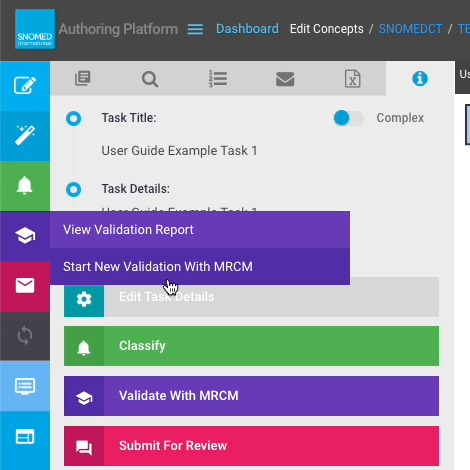
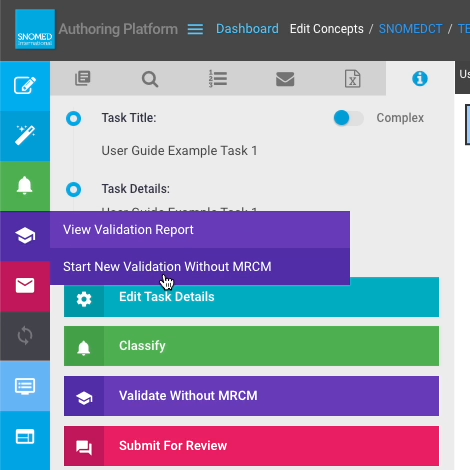
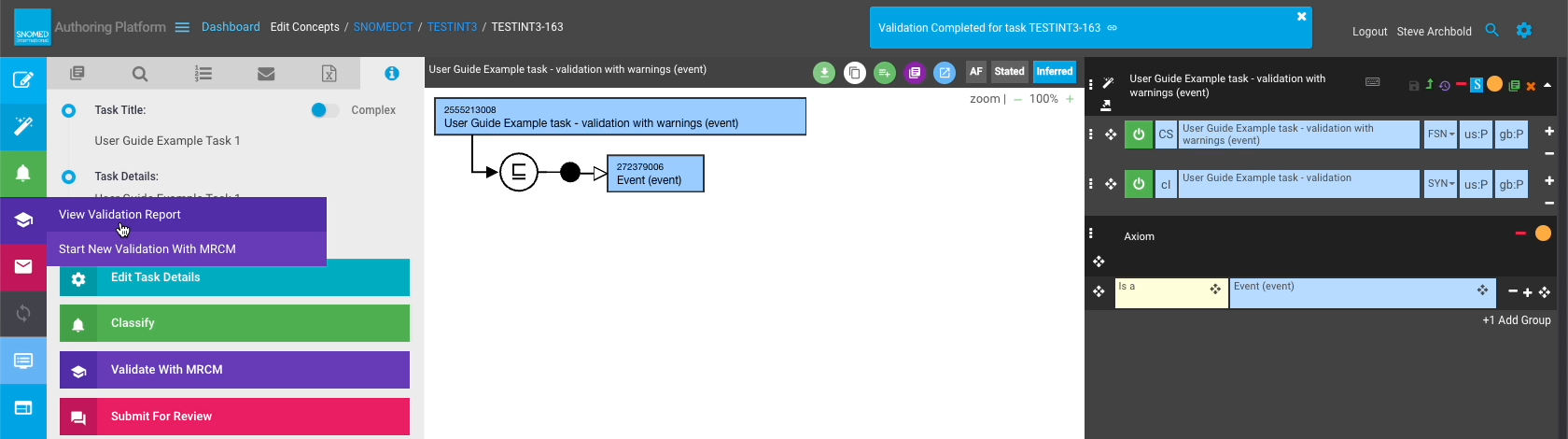
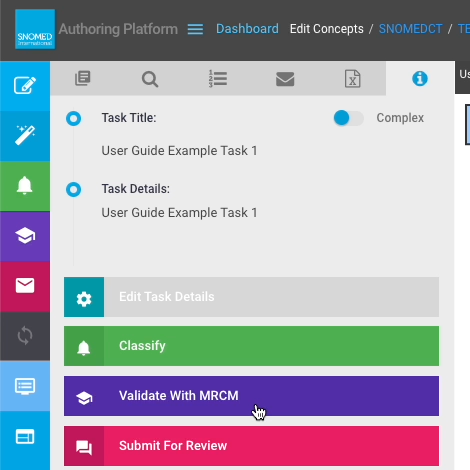
| <p><strong>Either</strong><br></p><p>In the <em>Task View - Task Details</em> panel actions button list, press <code>Validate with MRCM</code> or <code>Validate without MRCM</code>.<br></p><p><strong>Or</strong><br></p><p>From the left-hand button bar <em>Validation</em> sub-menu press <code>Start New Validation with MRCM</code> or <code>Start New Validation without MRCM</code><br></p><div data-gb-custom-block data-tag="hint" data-style="info" class="hint hint-info"><p><strong>Validation with or without MRCM</strong><br></p><p>Validation with or without MRCM depends on the checkbox setting in <em>Task Details</em>.</p></div>                                                                                                                                                                                                                                                                                                                                                                                                                                                                                                   | <div><figure><img src="/files/OdZaZ5RgSmraoOGWwddH" alt=""><figcaption></figcaption></figure></div><div><figure><img src="/files/K68ouANpL2JAqCzKi9pa" alt=""><figcaption></figcaption></figure></div><div><figure><img src="/files/bJyS82v7rzg94s6IDQRC" alt=""><figcaption></figcaption></figure></div><div><figure><img src="/files/N0y6iwAMsqrTOLuzgt8o" alt=""><figcaption></figcaption></figure></div>                                                                                                                                                                              |
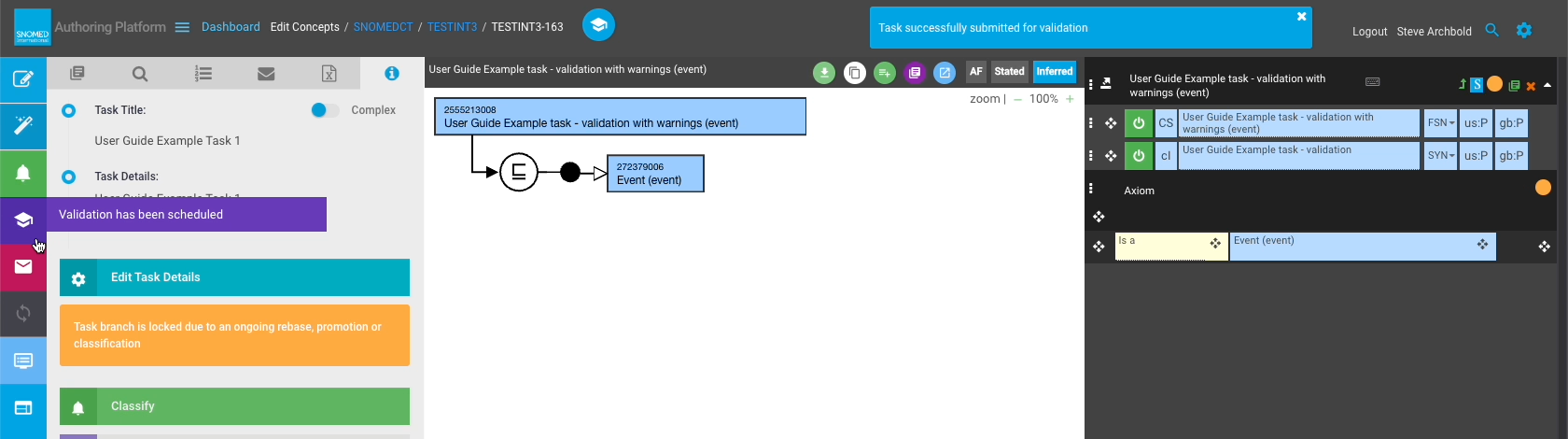
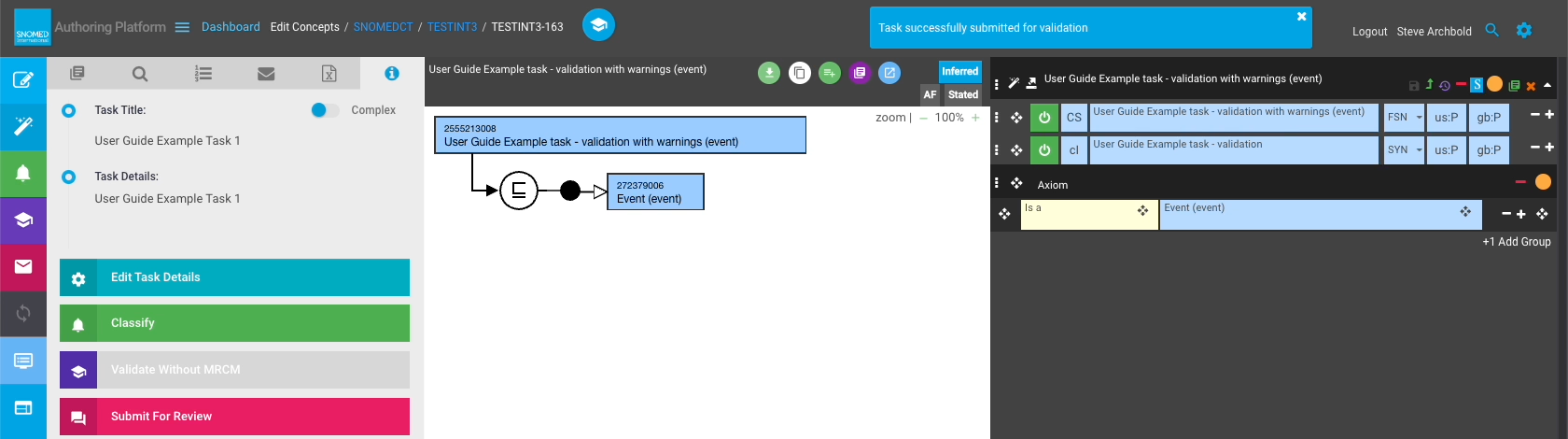
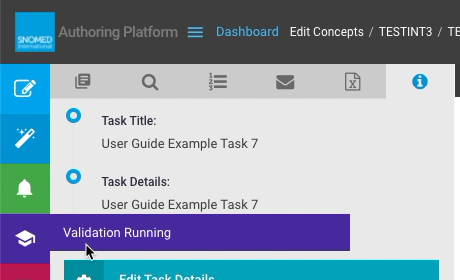
| <p>A "Task successfully submitted for validation" notification is presented in the page header, along with a validation status icon to the right of the task identifier, and a <code>Validation has been scheduled</code> status message replaces the request button in the left-hand button bar Validation sub-menu.<br></p><p>On initial submission for validation, the task content branch is locked briefly to prevent any further changes, and a warning notification is presented below the <code>Edit Task Details</code> button in the <em>Task Details</em> panel.<br></p><p>Whilst this warning is present, changes cannot be made to the content saved in the task branch, and action buttons other than <code>Edit Task Details</code> become inactive.<br></p><p>The task is typically unlocked for editing within a few seconds before the header notification is removed.</p>                                                                                                                                                                                                                                                               | <div><figure><img src="/files/t46zIUST4z3jpm8x3c2W" alt=""><figcaption></figcaption></figure></div><div><figure><img src="/files/dAeJL1FnM4B4Rcc1iaiw" alt=""><figcaption></figcaption></figure></div>                                                                                                                                                                                                                                                                                                                                                                                    |
| <p>Whilst validation is being processed, status icons are presented in the page header, to the right of the task identifier, and the <code>Validation has been scheduled</code> status message replaces the request button in the left-hand button bar Validation sub-menu.<br></p><div data-gb-custom-block data-tag="hint" data-style="info" class="hint hint-info"><p><strong>Validation takes many minutes to complete</strong><br></p><p>Validation is one of the most computationally intensive activities for the <em>Authoring Platform</em>, so takes some time to complete.<br></p><p>Each validation request is placed in a queue for processing by the <em>Release Validation Service (RVF)</em> so completion time can depend on how many are queued as well as the computational performance of the <em>RVF</em>.<br></p><p>Completion time can be up to 30 mins, perhaps longer in extreme cases, but is more typically around 10-20 mins.</p></div>                                                                                                                                                                                        | <div><figure><img src="/files/pYN8NMY7m9PV7khtHyXy" alt=""><figcaption></figcaption></figure></div><div><figure><img src="/files/rL5NxSZq4AVKZllm0jjZ" alt=""><figcaption></figcaption></figure></div><div><figure><img src="/files/EhFCExqnWgyoos0pZ7ph" alt=""><figcaption></figcaption></figure></div><div><figure><img src="/files/g0vdkq7ZfR6OWkBjCRKR" alt=""><figcaption></figcaption></figure></div><div><figure><img src="https://github.com/SNOMED-Documents/snomed-authoring-userguide/blob/main/how-to/.images/250545018.png" alt=""><figcaption></figcaption></figure></div> |
| <p>When the task validation is completed, a header notification is presented which includes a link to the <em>Validation Report</em> containing the validation results.<br></p><p><strong>EITHER</strong><br></p><p>Follow the link in the header notification to open the <em>Validation Report</em>.<br></p><p><strong>OR</strong><br></p><p>Press <code>View Validation Report</code> in the left-hand button bar <em>Validation</em> sub-menu.</p>                                                                                                                                                                                                                                                                                                                                                                                                                                                                                                                                                                                                                                                                                                     | <div><figure><img src="/files/afGsroFCAgJJmuUkmHLL" alt=""><figcaption></figcaption></figure></div><div><figure><img src="/files/Gv5bWnSNz69JURfWBcKc" alt=""><figcaption></figcaption></figure></div>                                                                                                                                                                                                                                                                                                                                                                                    |
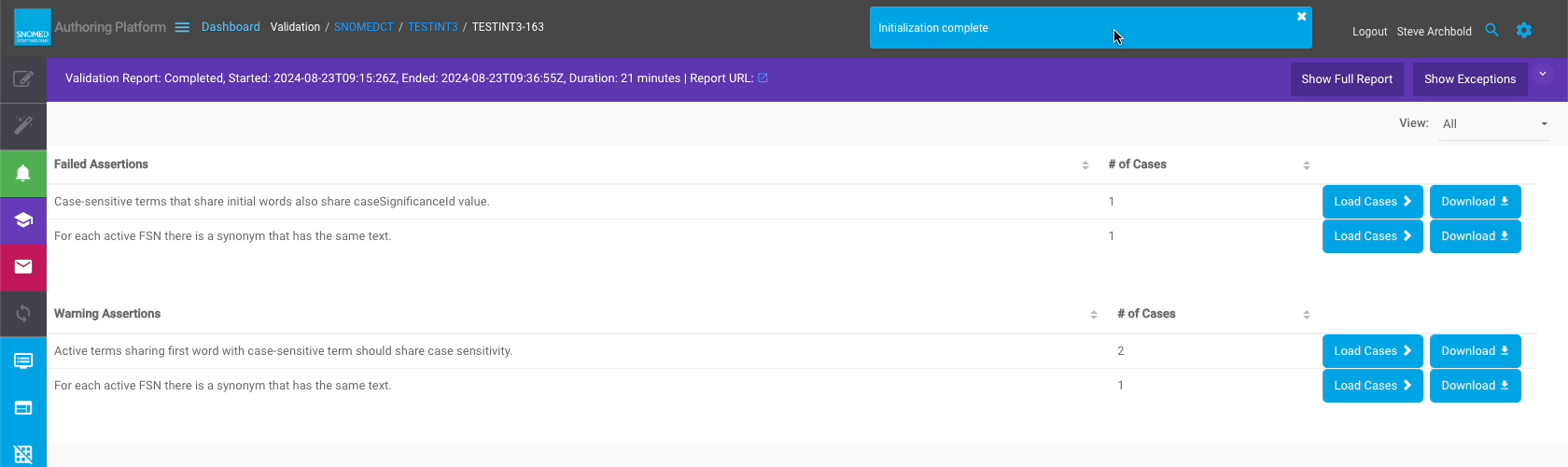
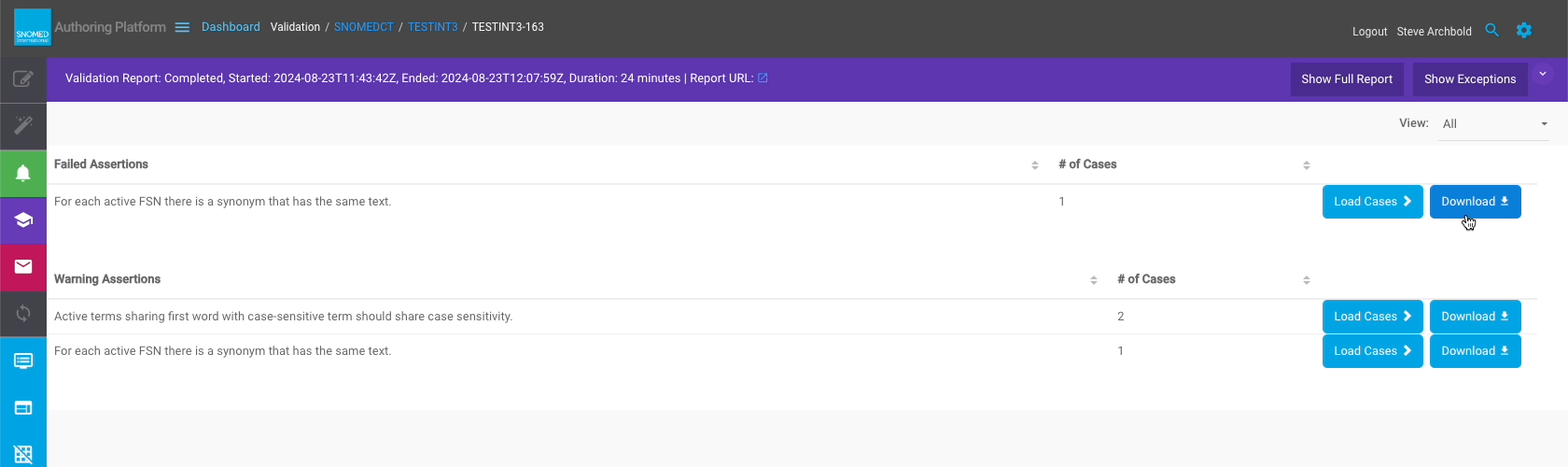
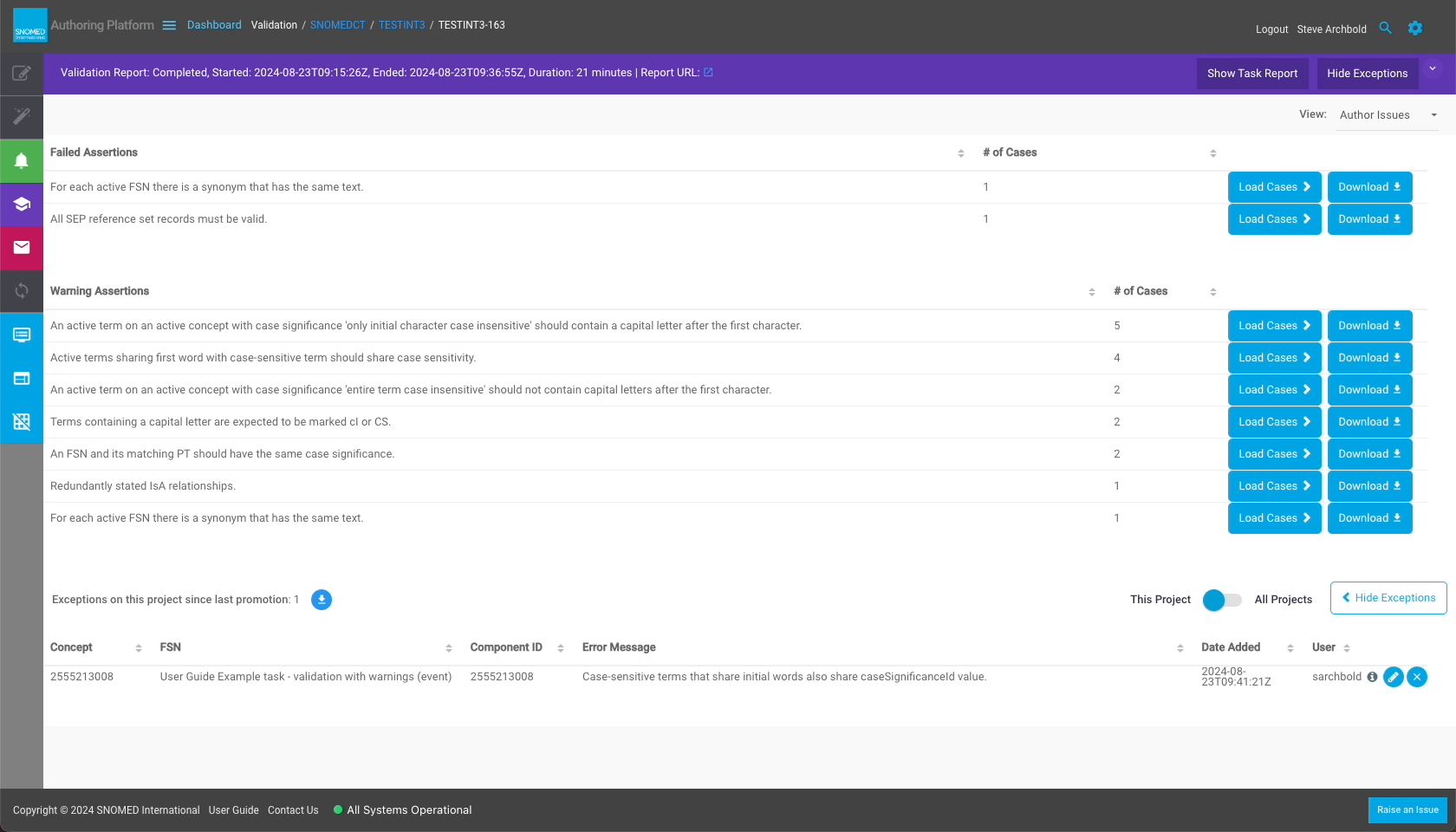
| <p>The <em>Validation Report</em> is presented in place of the <em>Edit Panel</em>, <em>Concept Diagram</em>, and left-hand context panels, with an "Initialisation complete" header notification.<br></p><p>This contains the following:</p><ul><li><p>Header bar with:</p><ul><li>Report label showing "Validation Report Completed <em>\<date-time-stamp></em>".</li><li><code>Show Full Report</code> text action button.</li><li><code>Show Exceptions</code> text action button.</li></ul></li><li>Report panel.</li></ul><p>If the task contains no validation errors, the message "No validation results to display" is presented in the report panel.<br></p><p>If the task has validation issues then the validation report will contain listings of <em>Failed Assertions</em> and <em>Warning Assertions</em>.<br></p><p>Each list entry contains:<br></p><ul><li>Validation assertion description.</li><li>Total number of cases (concepts) related to that assertion.</li><li><code>Load Cases</code> icon/text action button.</li><li><code>Download</code> icon/text action button.</li></ul>                                              | <div><figure><img src="/files/P7zjz39uuWyYeyT3WTZO" alt=""><figcaption></figcaption></figure></div><div><figure><img src="/files/KDUqNT0X70gh2eSXhKGJ" alt=""><figcaption></figcaption></figure></div>                                                                                                                                                                                                                                                                                                                                                                                    |
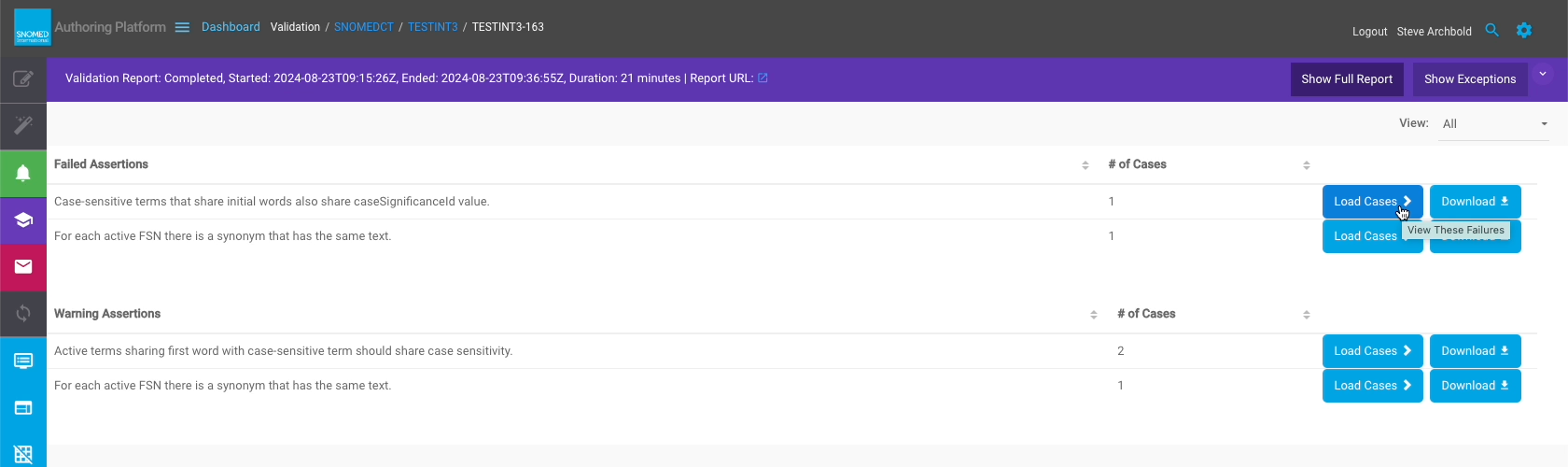
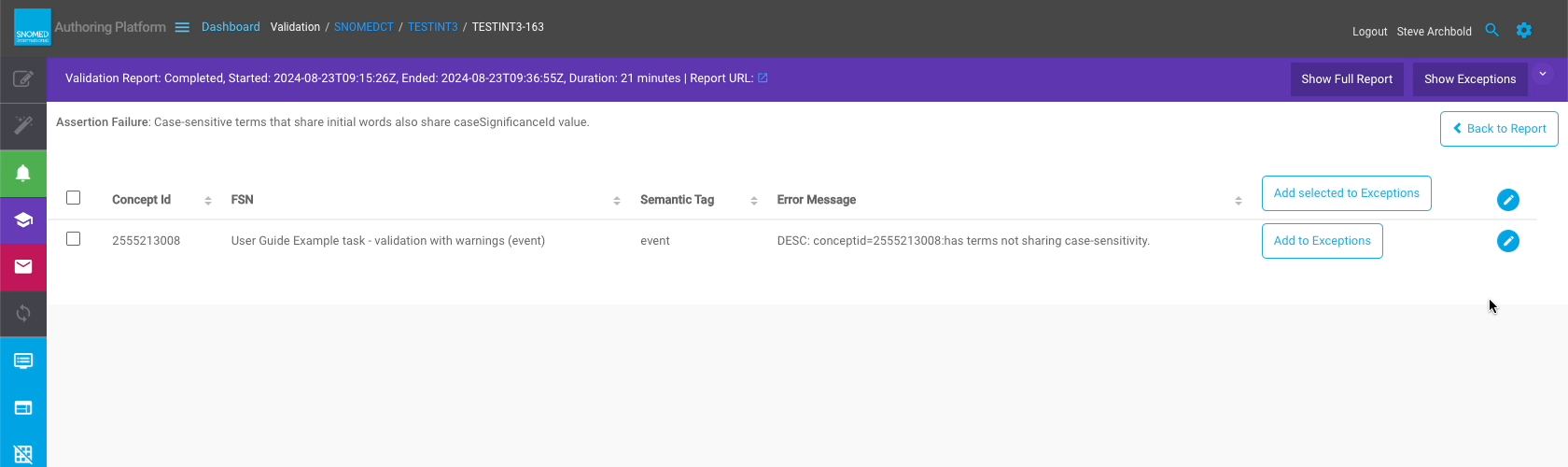
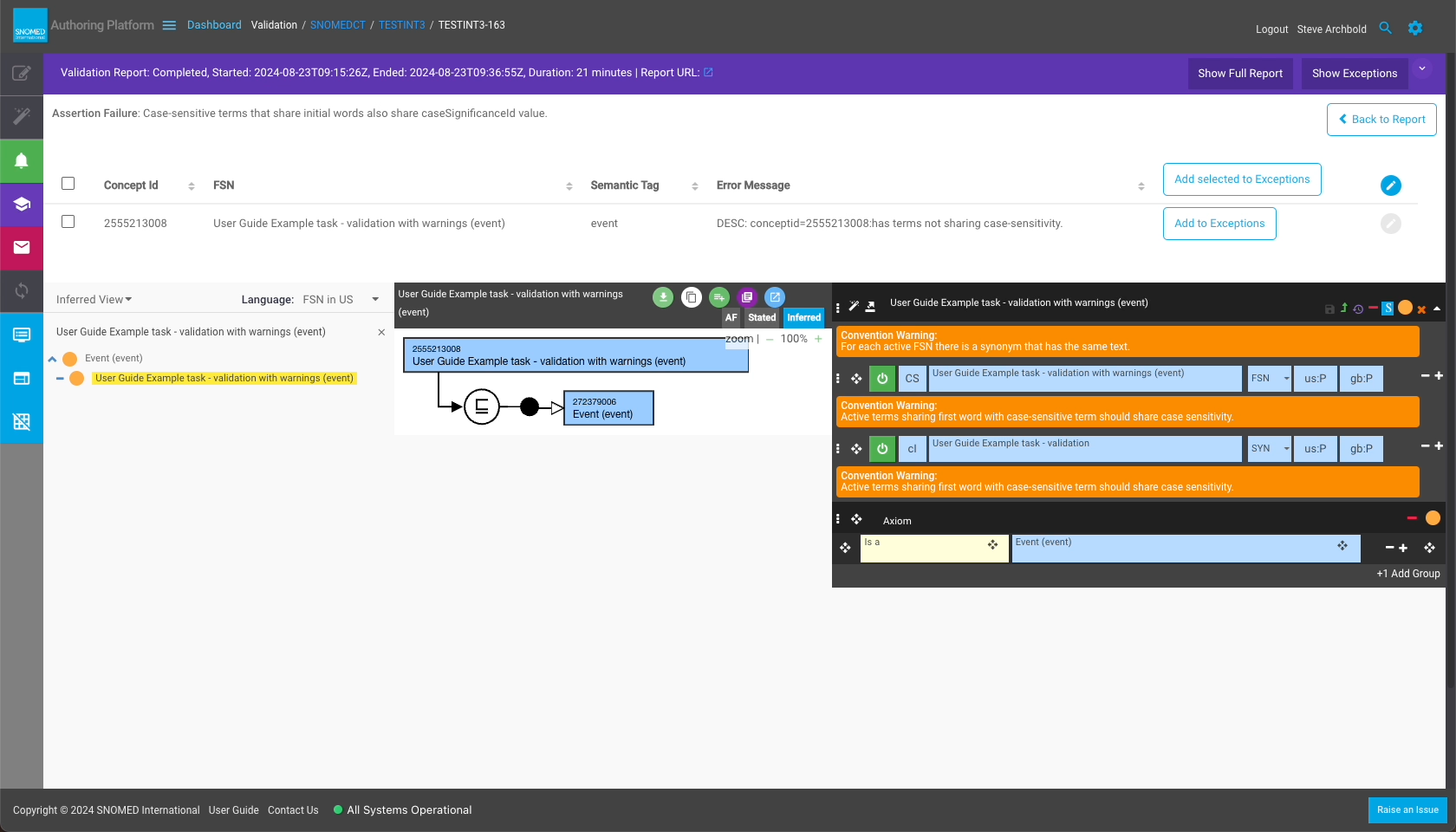
| <p>Press <code>Load Cases</code> on an assertion list entry to see the concepts which triggered the assertion.<br></p><p>The report panel switches to a tabulated list of concepts below a header line which contains the <code>Assertion Failure</code> text, and a <code>Back to Report</code> icon/text action button (which returns to the case listing view).<br></p><p>Each concept row has the following:<br></p><ul><li>Select box.</li><li><code>Concept Id</code> (SCTID).</li><li><code>FSN</code> term.</li><li><code>Semantic Tag</code></li><li><code>Error Message</code>.</li><li><code>Add to Exceptions</code> text action button.</li><li><code>View/Edit Concept</code> icon button.</li></ul><p>The table rows can be sorted by Concept Id, FSN, Semantic Tag and Error Message by toggling the column header labels.<br></p><p>The select boxes on each row work in combination with the <code>Add selected to Exceptions</code> and <code>View/Edit Selected Concepts</code> action buttons in the rightmost two column headers. These actions will be applied to all selected concept rows to quickly process them as a group.</p> | <div><figure><img src="/files/pWqwLdJkdTNjLh8VPhDA" alt=""><figcaption></figcaption></figure></div><div><figure><img src="/files/0filKyDijTD62kauOL6l" alt=""><figcaption></figcaption></figure></div>                                                                                                                                                                                                                                                                                                                                                                                    |
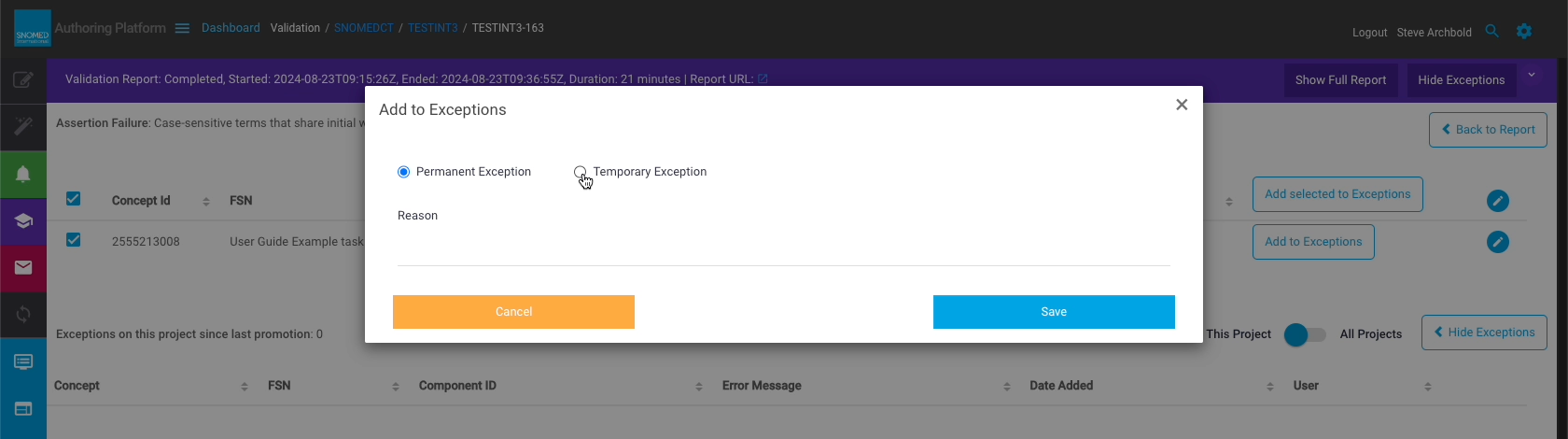
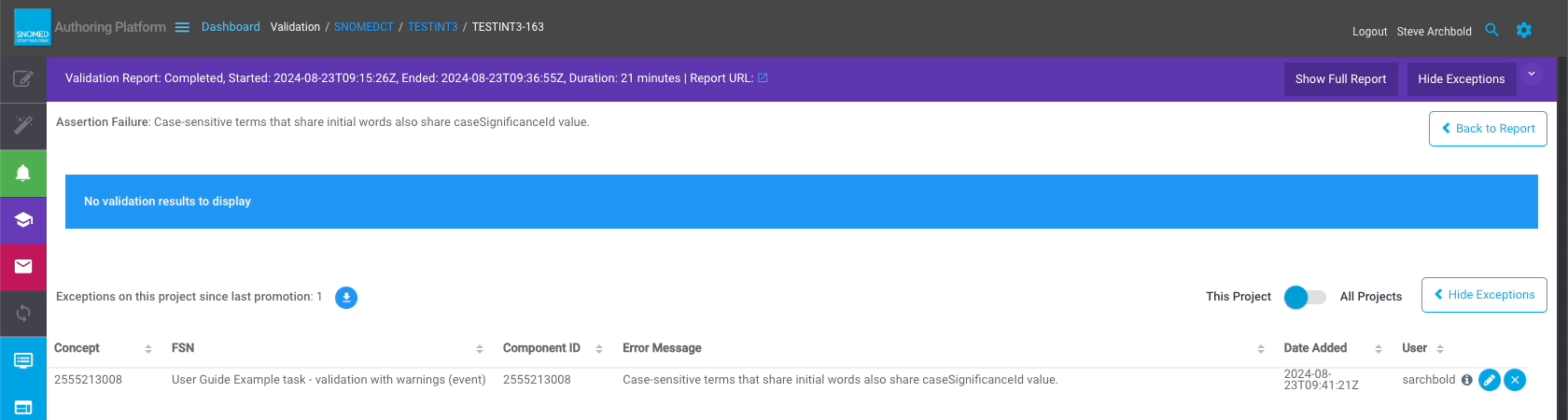
| <p>Press <code>Add to Exceptions</code> (on a single concept row) or <code>Add Selected to Exceptions</code> (selected rows) to open the Add to Exceptions dialogue overlay.<br></p><p>Exceptions can be added as either a <code>Permanent Exception</code> or <code>Temporary Exception</code>.<br></p><p>Add a <code>Reason</code> for the exception, then press <code>Save</code> to put the assertion on the relevant exceptions list, or press <code>Cancel</code> to return to the validation report without adding to the Exceptions list.<br></p><div data-gb-custom-block data-tag="hint" data-style="info" class="hint hint-info"><p><strong>Exceptions lists have project scope</strong><br></p><p>Note that any exceptions added from a task will apply to all tasks within the same project.<br></p><p>Exception listed cases are removed from the <em>Failed Assertions</em> and <em>Warning Assertions</em> listings.</p></div>                                                                                                                                                                                                             | <div><figure><img src="/files/kBPwNWFHZ73jSBNyLPjG" alt=""><figcaption></figcaption></figure></div><div><figure><img src="/files/Ei5tlKTRmk6gdoH9o9qI" alt=""><figcaption></figcaption></figure></div><div><figure><img src="/files/amkqJmvy8o6lRm07zvT7" alt=""><figcaption></figcaption></figure></div>                                                                                                                                                                                                                                                                                 |
| <p>The Exceptions List is initially presented for the task's project, but the list scope can be switched between <code>This Project</code> and <code>All Projects.</code>Such cases can be viewed by pressing <code>Show Exceptions</code> in the <em>Validation Report</em> header.<br></p><p>Press <code>Hide Exceptions</code> to remove the Exceptions List from view.</p>                                                                                                                                                                                                                                                                                                                                                                                                                                                                                                                                                                                                                                                                                                                                                                             | <div><figure><img src="/files/f1BEU654msDpHCwBcuM9" alt=""><figcaption></figcaption></figure></div>                                                                                                                                                                                                                                                                                                                                                                                                                                                                                       |
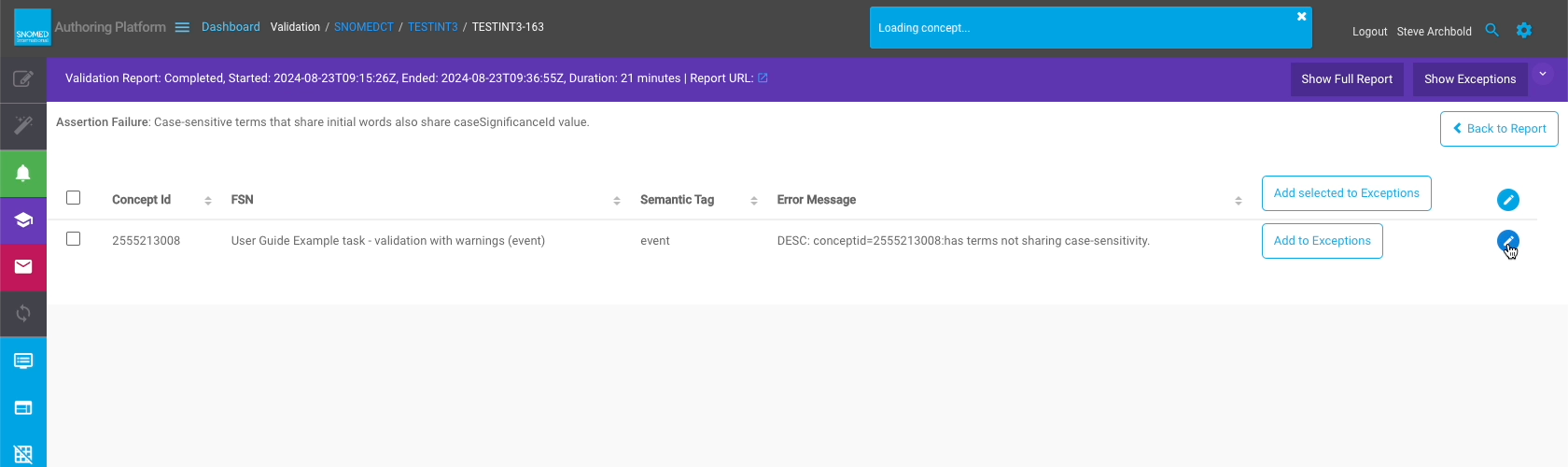
| <p>Press <code>View/Edit Concept</code> (on a single concept row) or <code>View/Edit Selected Concepts</code> (selected rows) to see case concepts in an embedded <em>Taxonomy/Editor</em> panel below the cases table. This supports direct inspection and editing of concepts on a case-by-case basis without leaving the <em>Validation Report</em>.<br></p><p>To remove a concept from the <em>Taxonomy/Editor</em> panel press its "<code>X"</code> (<code>Remove concept from edit panel</code>) icon button in the concept header icon button list (as for the main <em>Editor</em> view).</p>                                                                                                                                                                                                                                                                                                                                                                                                                                                                                                                                                      | <div><figure><img src="/files/wRZ2NNB2hGbPP51rbLVE" alt=""><figcaption></figcaption></figure></div><div><figure><img src="/files/wkAt2RW6iSgYU2jjmUJW" alt=""><figcaption></figcaption></figure></div>                                                                                                                                                                                                                                                                                                                                                                                    |
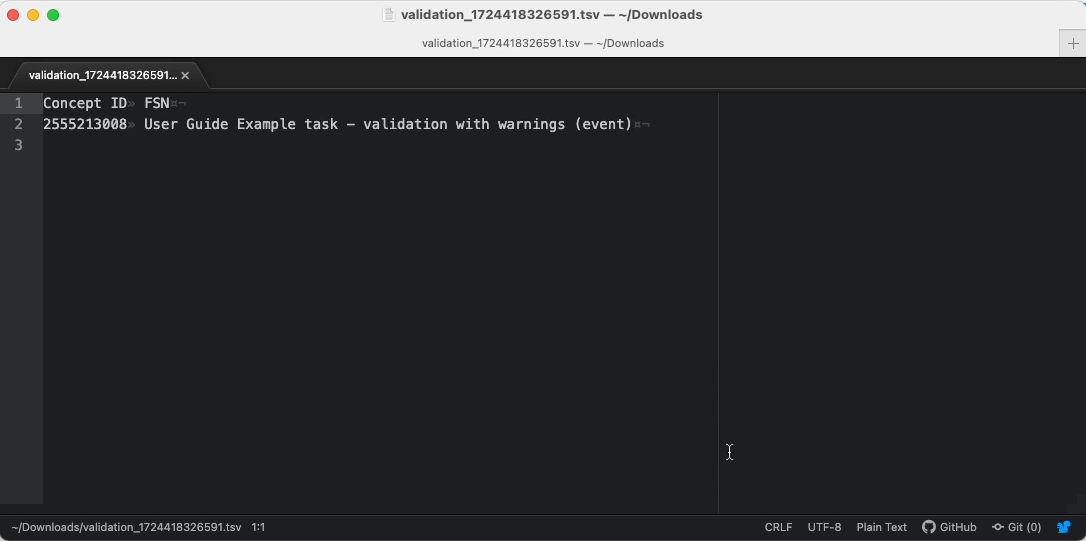
| <p>Press <code>Download</code> to save a list file to your local machine in <code>.tsv</code> format. The file contains the <em>Concept ID</em> (SCTID) and <em>FSN</em> term for each concept in the cases list (one per line, tab-delimited; line 1 is a header line with field labels).<br></p><div data-gb-custom-block data-tag="hint" data-style="info" class="hint hint-info"><p><strong>Validation download file (.tsv format)</strong><br></p><p><img src="/files/twf82bBp4RVku2Ajj0Uz" alt="" data-size="original"></p></div>                                                                                                                                                                                                                                                                                                                                                                                                                                                                                                                                                                                                                    | <div><figure><img src="/files/Qu7lITlVr0grQbU3hLKa" alt=""><figcaption></figcaption></figure></div>                                                                                                                                                                                                                                                                                                                                                                                                                                                                                       |
| <p>By default the Validation Report shows only assertion failures triggered by concepts modified within the task.<br></p><p>Press <code>Show Full Report</code> to see all assertion failures for the entire branch contents.<br></p><p>These may include assertion failures carried into the task from the project level, either on task creation or via task rebase.<br></p><p>When viewing the full report, press <code>Show Task Report</code> to return to the default view and only present assertion failures triggered by changes made within the task.</p>                                                                                                                                                                                                                                                                                                                                                                                                                                                                                                                                                                                        | <div><figure><img src="/files/tv85uNxP4FLtqbghCFpC" alt=""><figcaption></figcaption></figure></div>                                                                                                                                                                                                                                                                                                                                                                                                                                                                                       |

<a href="https://docs.google.com/forms/d/e/1FAIpQLScTmbZIf0UEQwYDkY27EEWBkaiYkHSbR0_9DmFrMLXoQLyL7Q/viewform?usp=pp_url&#x26;entry.1767247133=AP+UG&#x26;entry.670899847=Validate%20my%20task%20changes" class="button primary">Provide Feedback</a>


---

# Agent Instructions: Querying This Documentation

If you need additional information that is not directly available in this page, you can query the documentation dynamically by asking a question.

Perform an HTTP GET request on the current page URL with the `ask` query parameter:

```
GET https://docs.snomed.org/snomed-ct-user-guides/authoring-user-guide/how-to/task-classification-and-validation/validate-my-task-changes.md?ask=<question>
```

The question should be specific, self-contained, and written in natural language.
The response will contain a direct answer to the question and relevant excerpts and sources from the documentation.

Use this mechanism when the answer is not explicitly present in the current page, you need clarification or additional context, or you want to retrieve related documentation sections.