# Use context-specific language reference sets for an extension

| Steps                                                                                                                                                                                                                                                                                                                                                                                                                                                                                                                                                                                                                                                                                                                                                                                                                                                                                                                                                                                                                                                                                                               | References                                                                                                                                                                                             |
| ------------------------------------------------------------------------------------------------------------------------------------------------------------------------------------------------------------------------------------------------------------------------------------------------------------------------------------------------------------------------------------------------------------------------------------------------------------------------------------------------------------------------------------------------------------------------------------------------------------------------------------------------------------------------------------------------------------------------------------------------------------------------------------------------------------------------------------------------------------------------------------------------------------------------------------------------------------------------------------------------------------------------------------------------------------------------------------------------------------------- | ------------------------------------------------------------------------------------------------------------------------------------------------------------------------------------------------------ |
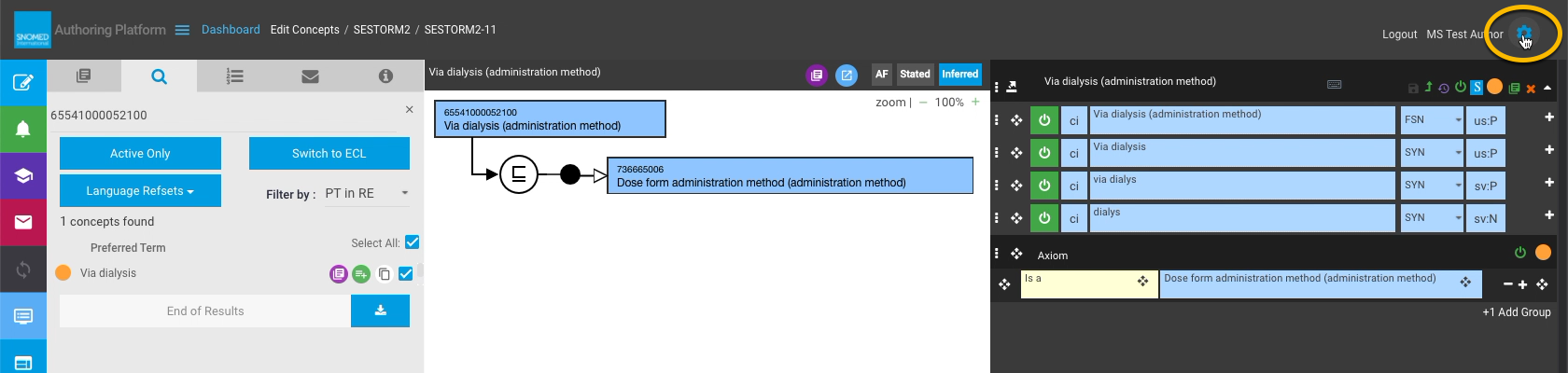
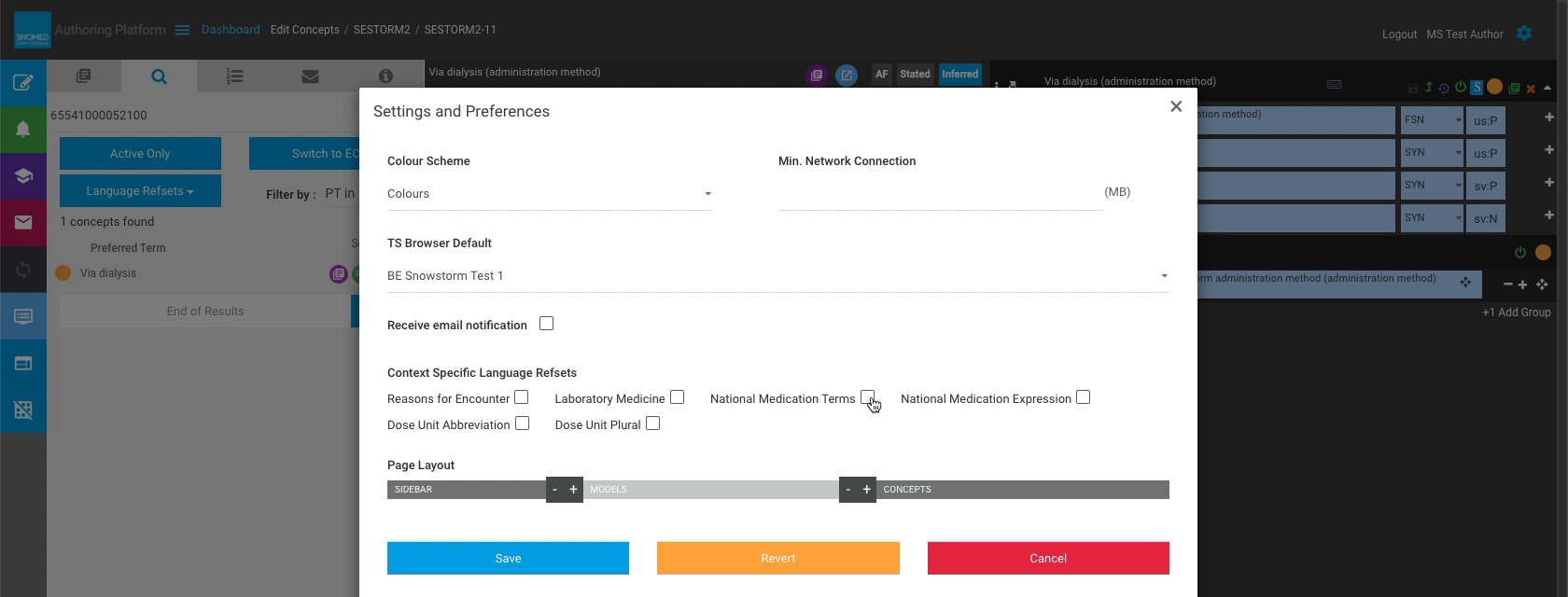
| <p>When working in a task within a Managed Service extension, context-specific language reference set acceptability entries can be enabled in <em>Concept Editor</em> within the <em>Edit Panel</em>, by selecting from a list of those available in the author's <em>Settings and Preferences</em>.<br></p><p>From the <em>Task View</em> , press the cogwheel <i class="fa-cogwheel">:cogwheel:</i> icon in the upper right of the page header, to open the <em>Settings and Preferences</em> pop-up dialogue.<br></p><p>When context-specific language reference sets are available, they are listed above the <em>Page Layout</em> section.<br></p><p>Each entry has a checkbox to enable display of those entries in the <em>Concept Editor</em>.</p>                                                                                                                                                                                                                                                                                                                                                          | <div><figure><img src="/files/DSAi5H62mUHu2w0r11rl" alt=""><figcaption></figcaption></figure></div><div><figure><img src="/files/nVYNZjW6rhGouKzbkHyE" alt=""><figcaption></figcaption></figure></div> |
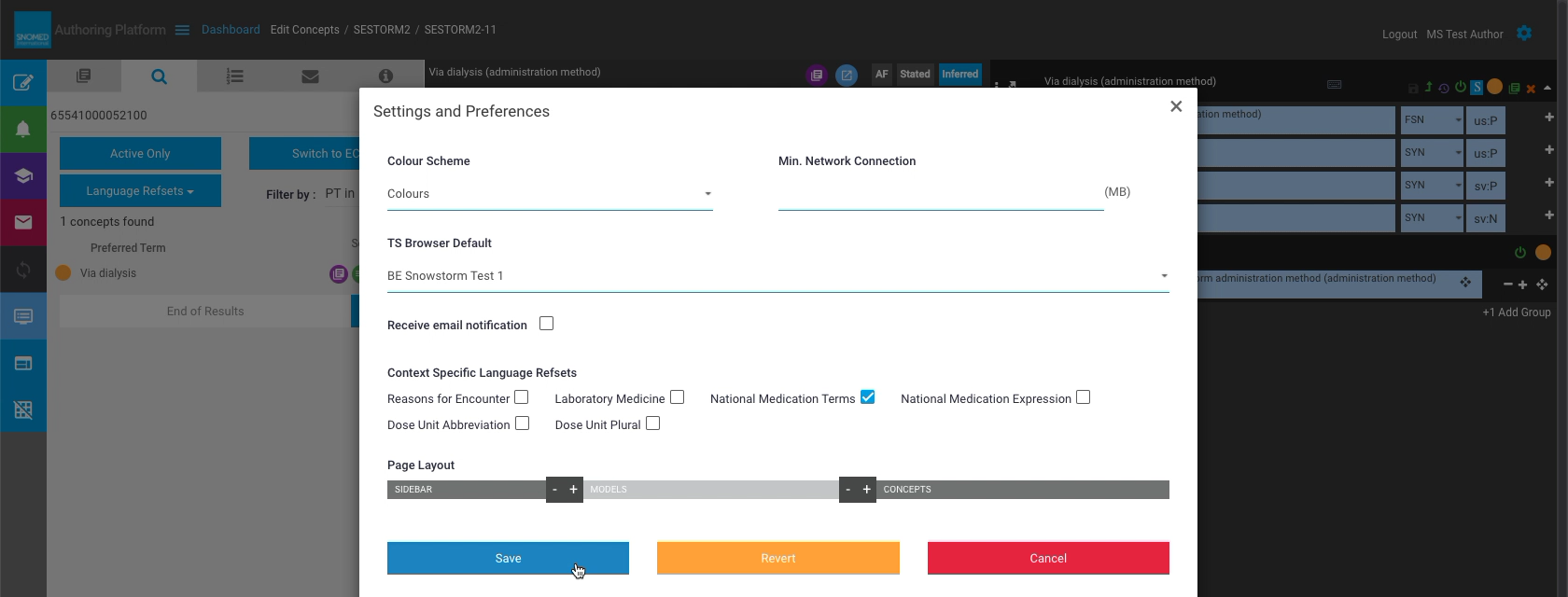
| Check the box for the desired entry, then press `Save` in the *Setting and Preferences* dialogue.                                                                                                                                                                                                                                                                                                                                                                                                                                                                                                                                                                                                                                                                                                                                                                                                                                                                                                                                                                                                                   | <div><figure><img src="/files/XHQkT6b3u7VU5VLDY6mR" alt=""><figcaption></figcaption></figure></div>                                                                                                    |
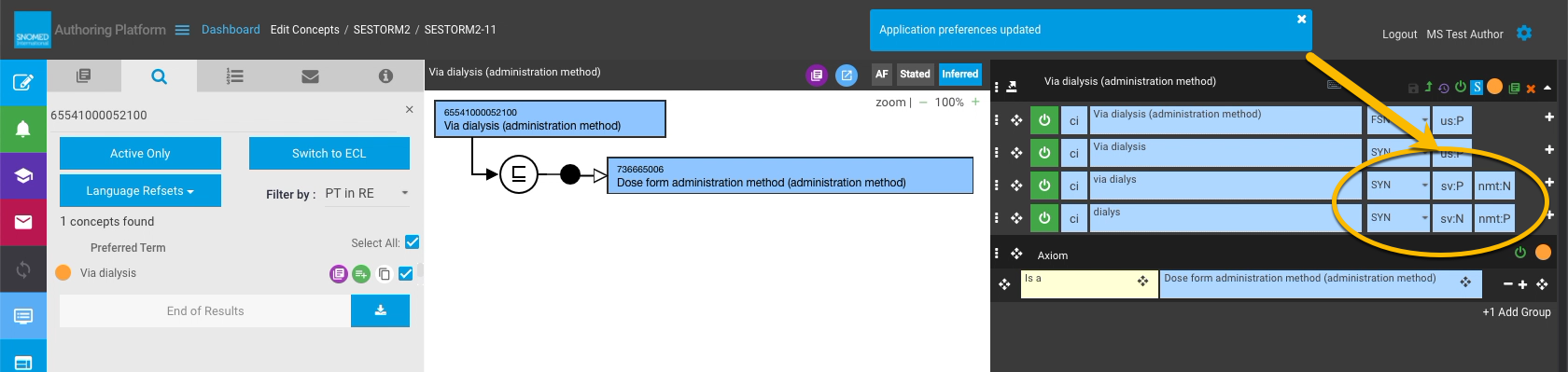
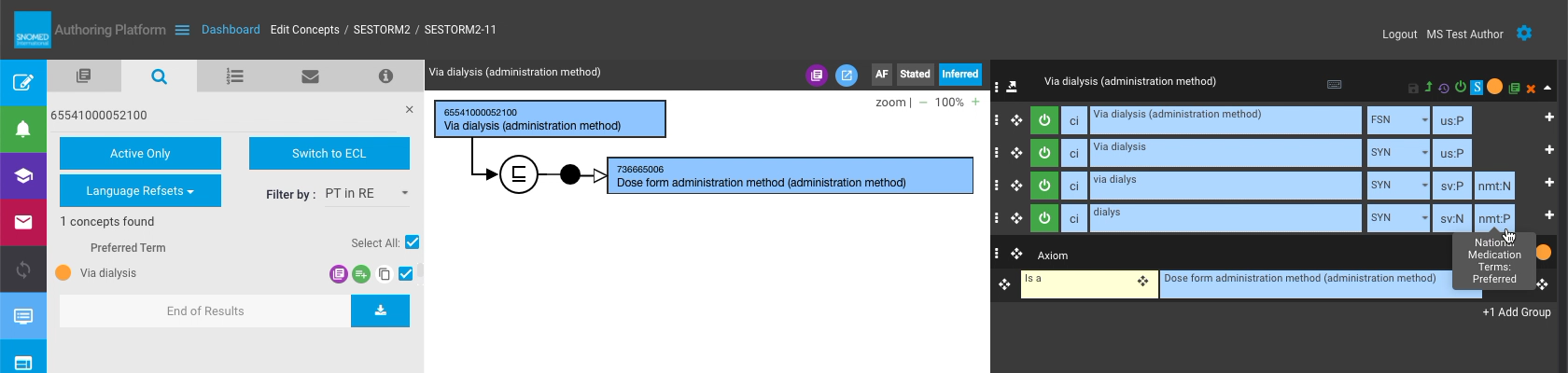
| <p>The <em>Settings and Preferences</em> dialogue closes, and a header notification for "Application preferences updated" is presented.<br></p><p>With the settings saved, and an appropriate concept loaded into the <em>Edit Panel</em>, the language acceptability entries for each term are updated to include those for the selected context-specific language reference set (abbreviated in the same style as the other language acceptability entries).</p>                                                                                                                                                                                                                                                                                                                                                                                                                                                                                                                                                                                                                                                  | <div><figure><img src="/files/42moJhOS2LzSj0lnGM4t" alt=""><figcaption></figcaption></figure></div>                                                                                                    |
| <p>Hovering over one of the newly presented entries presents a tooltip which expands the full name of the context-specific language reference set and the acceptability setting.<br></p><div data-gb-custom-block data-tag="hint" data-style="info" class="hint hint-info"><p><strong>Creating new concept entries</strong><br></p><p>These entries can be used in the same way as the other acceptability settings which are always present in the <em>Edit Panel</em>.<br></p><p>If a new concept is created, or a new description is added to an existing concept, and a value is set for one of the context-specific settings, a new entry will be created in the appropriate context-specific language reference set within the task branch, in exactly the same way as those for the other language reference set acceptability settings.<br></p><p>The default entry for these in the <em>Concept Editor</em> for new concepts is <em>Not Acceptable</em>.<br></p><p>Editing/saving an existing setting will also update the corresponding existing context-specific language reference set entry.</p></div> | <div><figure><img src="/files/b0ocXjDEjZy0dcYZ86ut" alt=""><figcaption></figcaption></figure></div>                                                                                                    |

<a href="https://docs.google.com/forms/d/e/1FAIpQLScTmbZIf0UEQwYDkY27EEWBkaiYkHSbR0_9DmFrMLXoQLyL7Q/viewform?usp=pp_url&#x26;entry.1767247133=AP+UG&#x26;entry.670899847=Use%20context-specific%20language%20reference%20sets%20for%20an%20extension" class="button primary">Provide Feedback</a>


---

# Agent Instructions: Querying This Documentation

If you need additional information that is not directly available in this page, you can query the documentation dynamically by asking a question.

Perform an HTTP GET request on the current page URL with the `ask` query parameter:

```
GET https://docs.snomed.org/snomed-ct-user-guides/authoring-user-guide/how-to/work-in-an-extension/use-context-specific-language-reference-sets-for-an-extension.md?ask=<question>
```

The question should be specific, self-contained, and written in natural language.
The response will contain a direct answer to the question and relevant excerpts and sources from the documentation.

Use this mechanism when the answer is not explicitly present in the current page, you need clarification or additional context, or you want to retrieve related documentation sections.