# International Reviewing Quick Start

## Log in to the International Authoring Platform

| Steps                                                                                                                                                                                                                                                                                                                                                                                                                                                                                                                                                                                                                                                                                                                                                                                                                                                                                                                                                                                                                                                                                                                                                                                                                                                                                                                                                                                                                                                                                                                                                                                                                                                                                                                                                                                                                                                                                                                                                     | References                                                                                                                                                                                                                                                                             |
| --------------------------------------------------------------------------------------------------------------------------------------------------------------------------------------------------------------------------------------------------------------------------------------------------------------------------------------------------------------------------------------------------------------------------------------------------------------------------------------------------------------------------------------------------------------------------------------------------------------------------------------------------------------------------------------------------------------------------------------------------------------------------------------------------------------------------------------------------------------------------------------------------------------------------------------------------------------------------------------------------------------------------------------------------------------------------------------------------------------------------------------------------------------------------------------------------------------------------------------------------------------------------------------------------------------------------------------------------------------------------------------------------------------------------------------------------------------------------------------------------------------------------------------------------------------------------------------------------------------------------------------------------------------------------------------------------------------------------------------------------------------------------------------------------------------------------------------------------------------------------------------------------------------------------------------------------------- | -------------------------------------------------------------------------------------------------------------------------------------------------------------------------------------------------------------------------------------------------------------------------------------- |
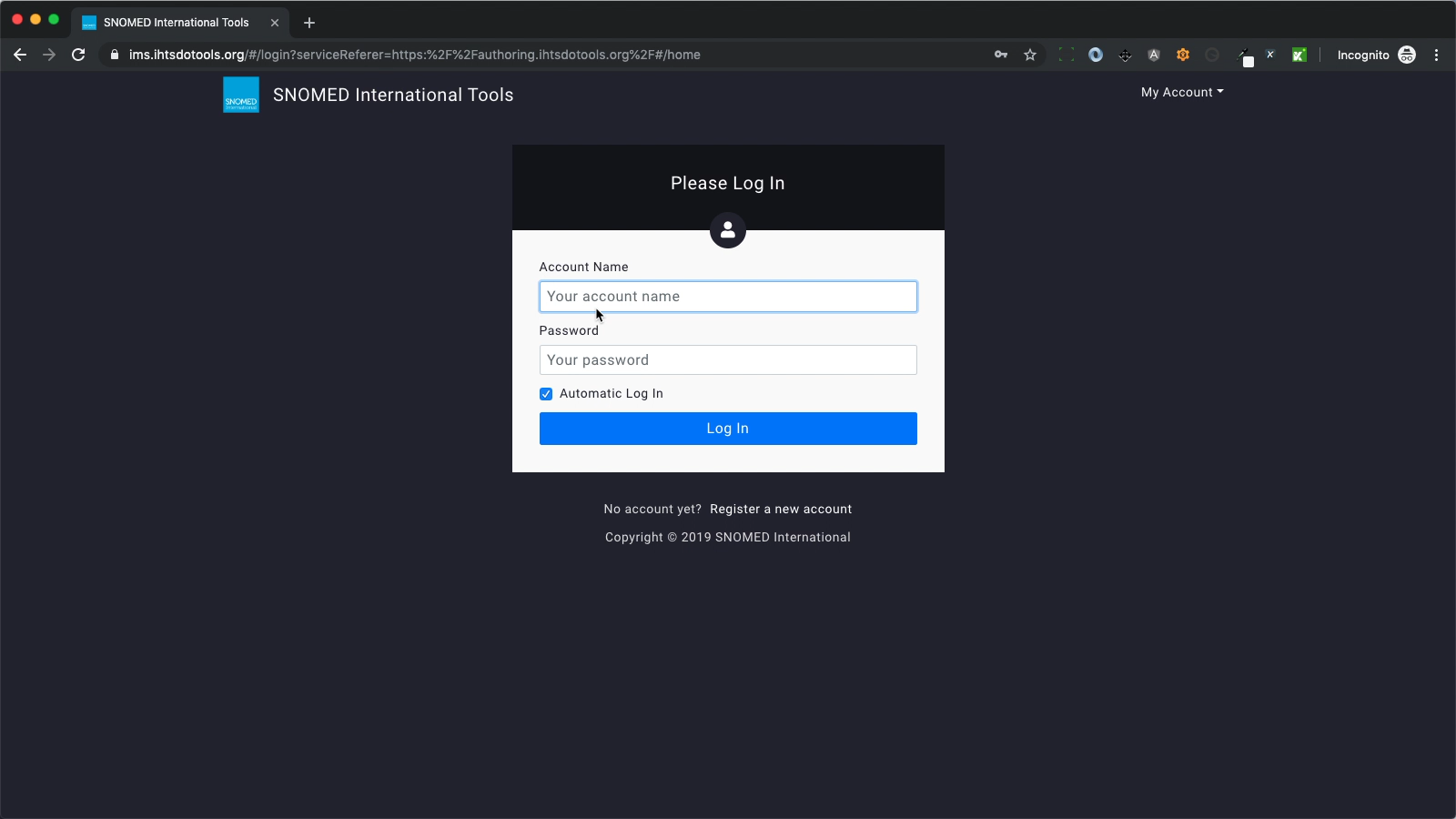
| <p>Go to the International AP in your web browser.</p><p>The International AP uses the SNOMED International IMS to authenticate and authorise access via a registered account.</p><p>If you're already registered with an existing SNOMED International Jira/Confluence account which has been granted AP access then you can use those credentials.</p>                                                                                                                                                                                                                                                                                                                                                                                                                                                                                                                                                                                                                                                                                                                                                                                                                                                                                                                                                                                                                                                                                                                                                                                                                                                                                                                                                                                                                                                                                                                                                                                                  | <https://authoring.ihtsdotools.org/>                                                                                                                                                                                                                                                   |
| <p>If you are not logged in to the AP, your web browser will be redirected to IMS for account authentication and access authorisation. You will see the IMS login screen in your web browser. Enter your account name and password.</p><p>If you check the <code>Automatic log in</code> box before pressing <code>Log In,</code> your credentials will be cached, so that your account name and password are automatically entered in the form when you next need to log in.With your credentials entered, press <code>Log In</code>.</p><p>If your credentials cannot be authenticated or your account is not authorised for access to the AP, then IMS will reload the login screen so you can try again with updated credentials.</p>                                                                                                                                                                                                                                                                                                                                                                                                                                                                                                                                                                                                                                                                                                                                                                                                                                                                                                                                                                                                                                                                                                                                                                                                                 | <div><figure><img src="https://956592758-files.gitbook.io/~/files/v0/b/gitbook-x-prod.appspot.com/o/spaces%2FO8kNzHFIgz2UFgwrcB08%2Fuploads%2Fgit-blob-8e512fdca5ea48c7d395618ac1026732f4b77a7b%2F96807809.png?alt=media" alt="" height="480"><figcaption></figcaption></figure></div> |
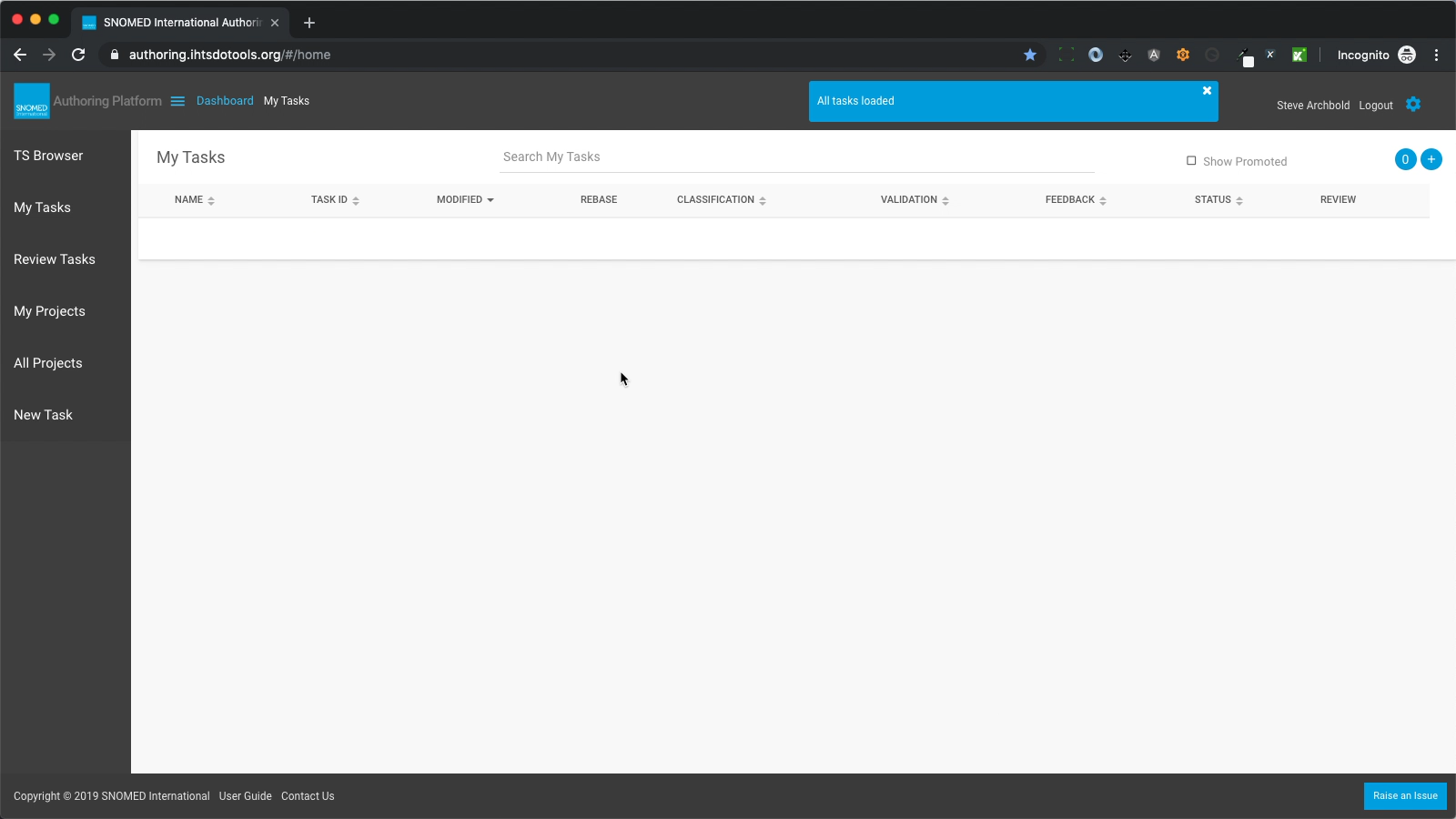
| <p>Once authenticated and authorised, your web browser will then be redirected back to the AP URL which triggered the authorisation and authentication process.</p><p>At this point you will have an authorised account session cookie in your web browser which means you will no longer be prompted for account credentials until either you have explicitly logged off or closed your web browser.</p><p>If the main URL above was used to open the International AP, you will then see the <em>Dashboard - My Tasks</em> view, and a blue notification box will show in the page header stating "All tasks loaded" (the header notification will automatically close after a brief interval, or you can press the <code>X</code> button in its upper right corner to close it manually).</p><p>If this is the first time you have used the AP (or all your existing tasks have been either promoted or deleted) then you will see an empty Dashboard listing view. This is where your tasks will be listed once created.</p><p>At this point you're in the International AP and ready to author content in your own tasks or review content created in other tasks by other authors.</p><div data-gb-custom-block data-tag="hint" data-style="warning" class="hint hint-warning"><p><strong>Not the International AP?</strong><br>If you have access permissions to more than one Authoring Platform, it's possible to inadvertently log into one of the others (perhaps via a bookmarked address) when the International AP was your intention, and they can appear almost identical in style and layout apart from the task names of any previously created tasks. Please verify the domain name in your browser's address bar if you're not sure, and if it's not what you intended, simply logout and start over with the International AP URL (<a href="https://authoring.ihtsdotools.org/"><https://authoring.ihtsdotools.org/></a>).</p></div> | <div><figure><img src="https://956592758-files.gitbook.io/~/files/v0/b/gitbook-x-prod.appspot.com/o/spaces%2FO8kNzHFIgz2UFgwrcB08%2Fuploads%2Fgit-blob-0326bf6f62256f111080b41dcfd41d0171a77549%2F96807810.png?alt=media" alt="" height="480"><figcaption></figcaption></figure></div> |

## See tasks submitted for review (by other authors)

| Steps                                                                                                                                                                           | References                                                                                                                                                                                                                                                                                                                                                                                                                                                                                                                                                                   |
| ------------------------------------------------------------------------------------------------------------------------------------------------------------------------------- | ---------------------------------------------------------------------------------------------------------------------------------------------------------------------------------------------------------------------------------------------------------------------------------------------------------------------------------------------------------------------------------------------------------------------------------------------------------------------------------------------------------------------------------------------------------------------------- |
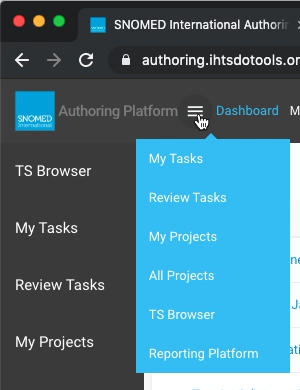
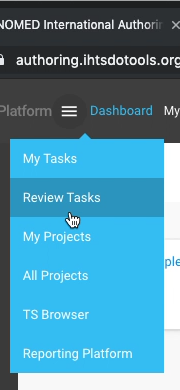
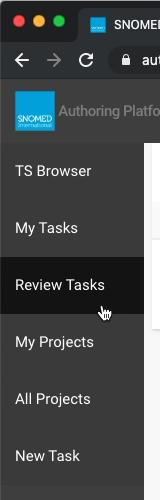
| <p><strong>EITHER</strong> (from anywhere in the application)<br>Open the page header drop down menu and press <code>Review Tasks</code> in the overlaid menu options list.</p> | <div><figure><img src="https://956592758-files.gitbook.io/~/files/v0/b/gitbook-x-prod.appspot.com/o/spaces%2FO8kNzHFIgz2UFgwrcB08%2Fuploads%2Fgit-blob-c92655062ba6682148509f42ff6a977cf6d50000%2F96808035.png?alt=media" alt="" height="260"><figcaption></figcaption></figure></div><div><figure><img src="https://956592758-files.gitbook.io/~/files/v0/b/gitbook-x-prod.appspot.com/o/spaces%2FO8kNzHFIgz2UFgwrcB08%2Fuploads%2Fgit-blob-e240b10e753ae6ec331d36531b8f934ab5095f69%2F96808044.png?alt=media" alt="" height="260"><figcaption></figcaption></figure></div> |
| <p><strong>OR</strong> (from any <em>Dashboard</em> view)<br>Press <code>Review Tasks</code> in the <em>Dashboard</em> view left sidebar menu.</p>                              | <div><figure><img src="https://956592758-files.gitbook.io/~/files/v0/b/gitbook-x-prod.appspot.com/o/spaces%2FO8kNzHFIgz2UFgwrcB08%2Fuploads%2Fgit-blob-72b422e292827276af7972309546b435139e76d1%2F96808045.png?alt=media" alt="" height="320"><figcaption></figcaption></figure></div>                                                                                                                                                                                                                                                                                       |
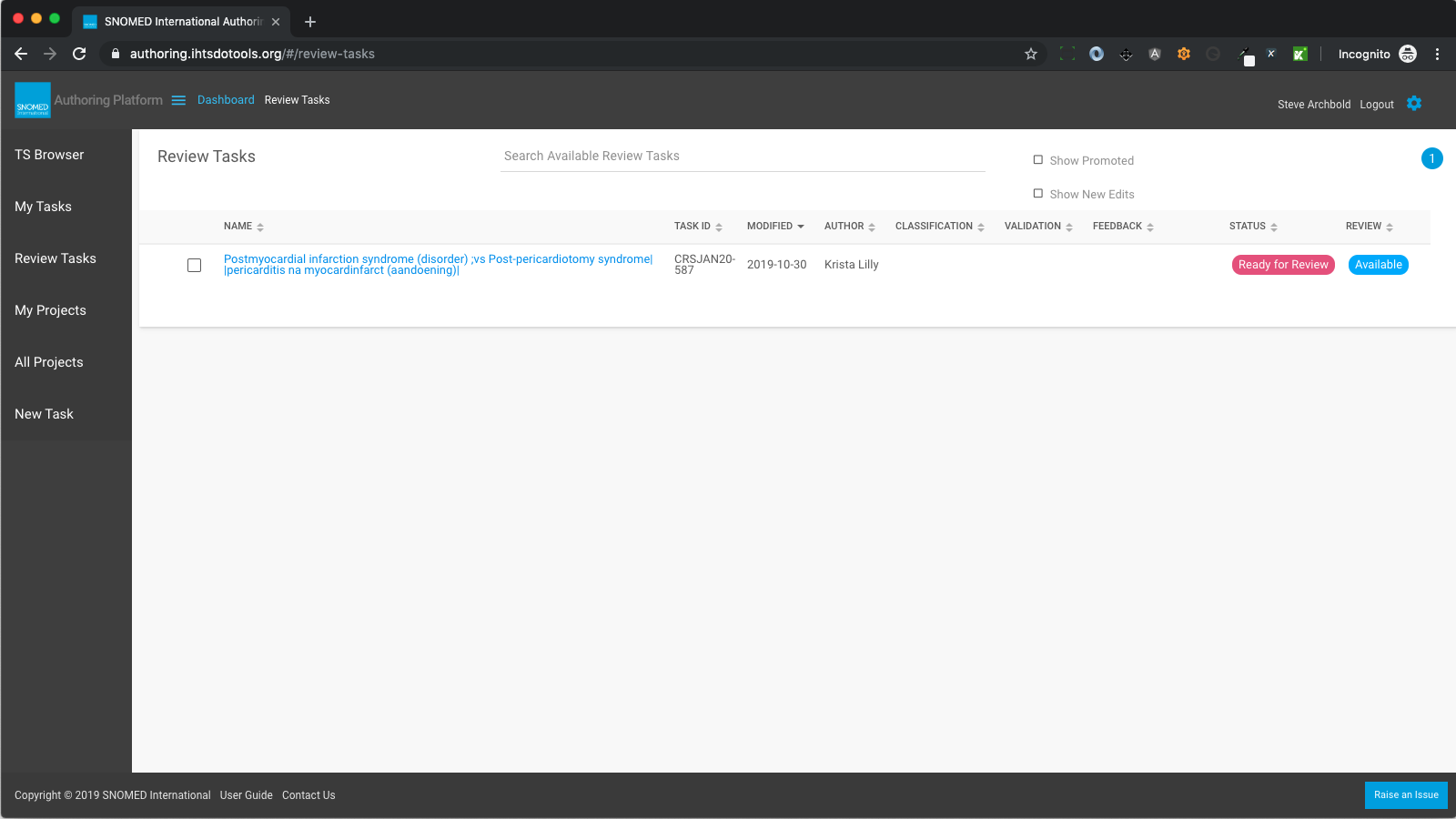
| The *Dashboard Review Tasks* view is presented.                                                                                                                                 | <div><figure><img src="https://956592758-files.gitbook.io/~/files/v0/b/gitbook-x-prod.appspot.com/o/spaces%2FO8kNzHFIgz2UFgwrcB08%2Fuploads%2Fgit-blob-104aa28eb45954e210b7fbb1028701dfcce1e1d8%2F96808046.png?alt=media" alt="" height="480"><figcaption></figcaption></figure></div>                                                                                                                                                                                                                                                                                       |

## Claim a task for review (open task as a Reviewer)

| Steps                                                                                                                                                                                                                                                                                                                                                                                                                                                                                                                                                                                                                                                                                                  | References                                                                                                                                                                                                                                                                             |
| ------------------------------------------------------------------------------------------------------------------------------------------------------------------------------------------------------------------------------------------------------------------------------------------------------------------------------------------------------------------------------------------------------------------------------------------------------------------------------------------------------------------------------------------------------------------------------------------------------------------------------------------------------------------------------------------------------ | -------------------------------------------------------------------------------------------------------------------------------------------------------------------------------------------------------------------------------------------------------------------------------------- |
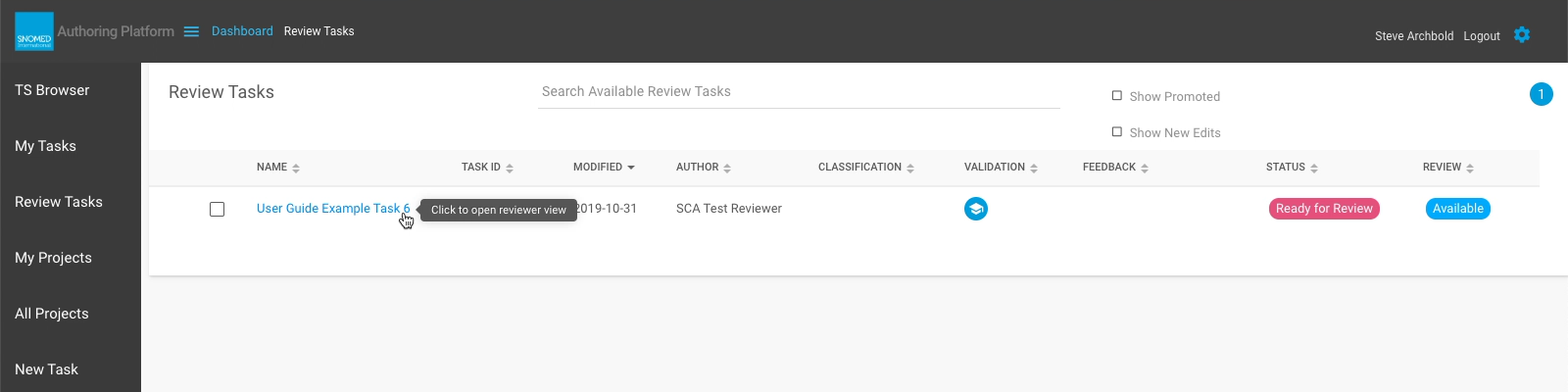
| <p><strong>EITHER</strong><br>In the Review <em>Tasks</em> view, press the name link on the task you want to open. This opens the <em>Task View</em> to the context of the <em>Feedback</em> activity tab.</p><p>If task status is <code>Ready for Review</code> and the review status is <code>Available</code> (not yet claimed) this action will claim it for review and assign you to it as a Reviewer. The task will change state to <code>In Review</code> and its review state will become <code>Claimed</code>.</p><p>If task status is <code>In Review</code> and review is <code>Claimed</code> this will re-open the task for review and show any changes made to concepts in the task.</p> | <div><figure><img src="https://956592758-files.gitbook.io/~/files/v0/b/gitbook-x-prod.appspot.com/o/spaces%2FO8kNzHFIgz2UFgwrcB08%2Fuploads%2Fgit-blob-62647961a31e88fe323e12f715d8ea43130b1aaf%2F96808235.png?alt=media" alt="" height="120"><figcaption></figcaption></figure></div> |
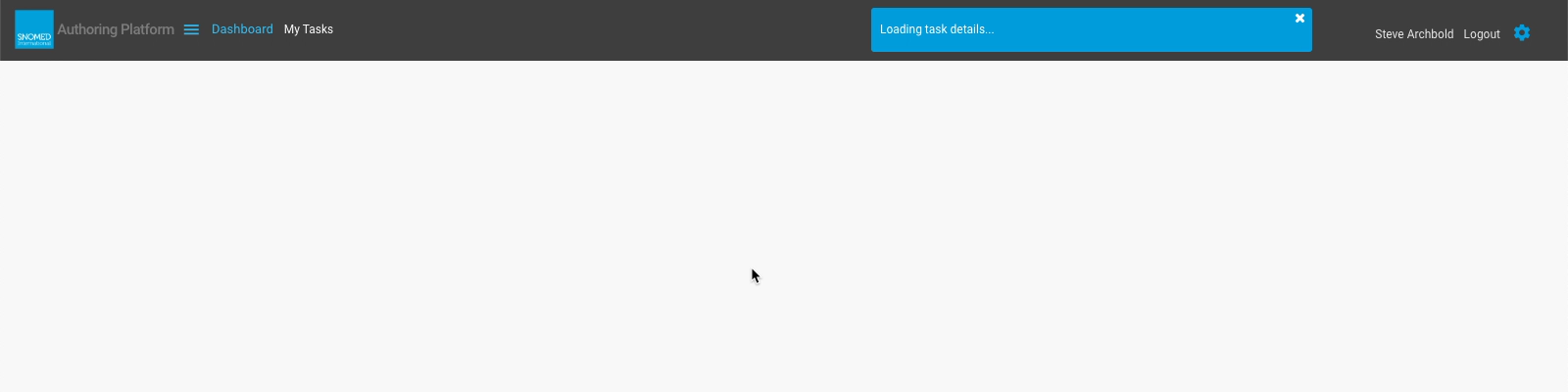
| Whilst loading, the main content panel is cleared, and a blue header notification stating "Loading task details..." is presented. When completed, the header notification changes to "Task details loaded".                                                                                                                                                                                                                                                                                                                                                                                                                                                                                            | <div><figure><img src="https://956592758-files.gitbook.io/~/files/v0/b/gitbook-x-prod.appspot.com/o/spaces%2FO8kNzHFIgz2UFgwrcB08%2Fuploads%2Fgit-blob-42951b01a685220e29a3dc59f835fd0e447411b4%2F96808210.png?alt=media" alt="" height="120"><figcaption></figcaption></figure></div> |
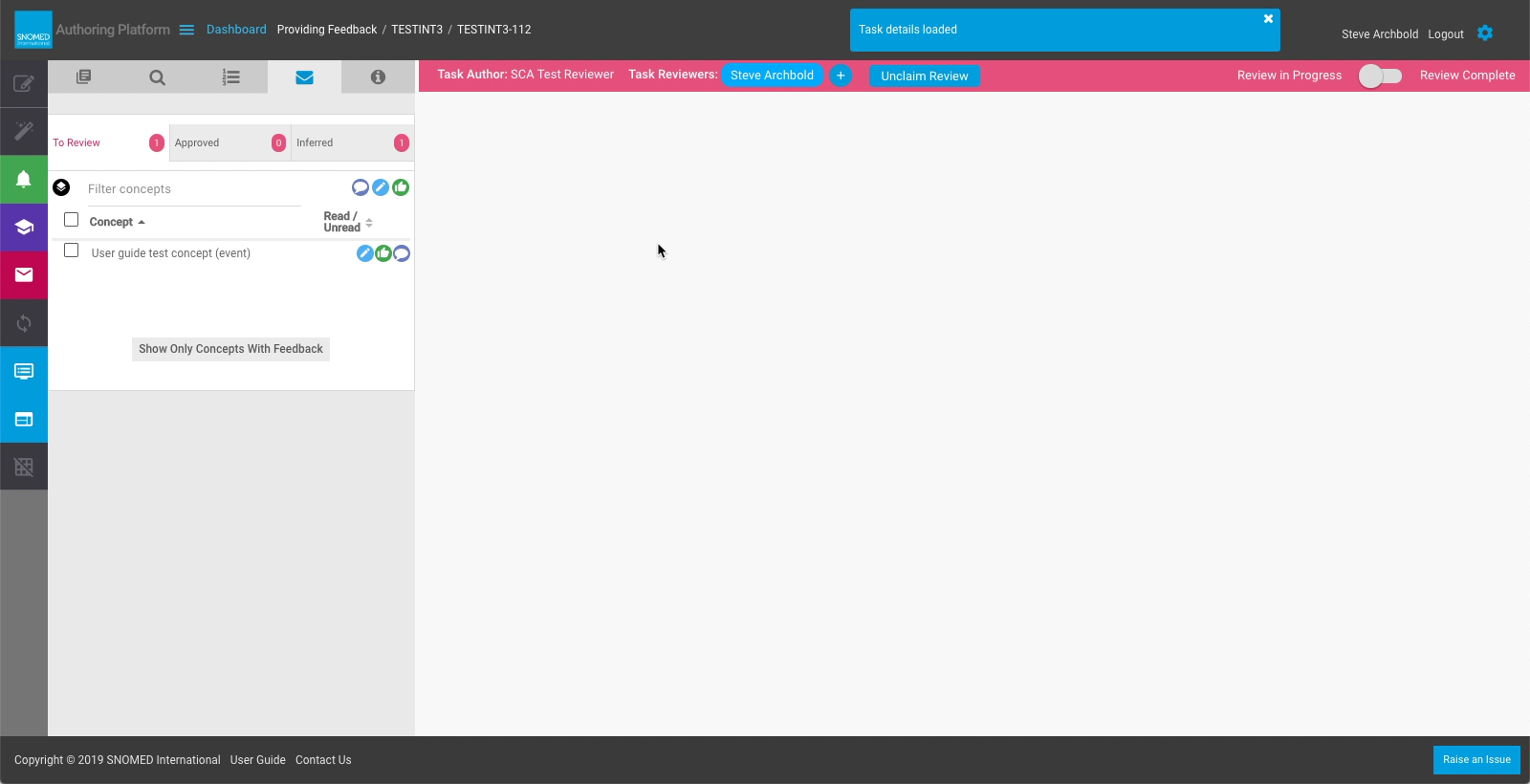
| The *Task View Review and Feedback* layout is presented, showing concepts to review, concepts approved, and inferred concept changes within the task. This layout maintains the Activities panel (Left Sidebar), as well as the Options panel menu for navigation back to other task contexts.                                                                                                                                                                                                                                                                                                                                                                                                         | <div><figure><img src="https://956592758-files.gitbook.io/~/files/v0/b/gitbook-x-prod.appspot.com/o/spaces%2FO8kNzHFIgz2UFgwrcB08%2Fuploads%2Fgit-blob-5a1da8908cba6f7ba573580c39a9464d0b09da52%2F96808452.png?alt=media" alt="" height="246"><figcaption></figcaption></figure></div> |
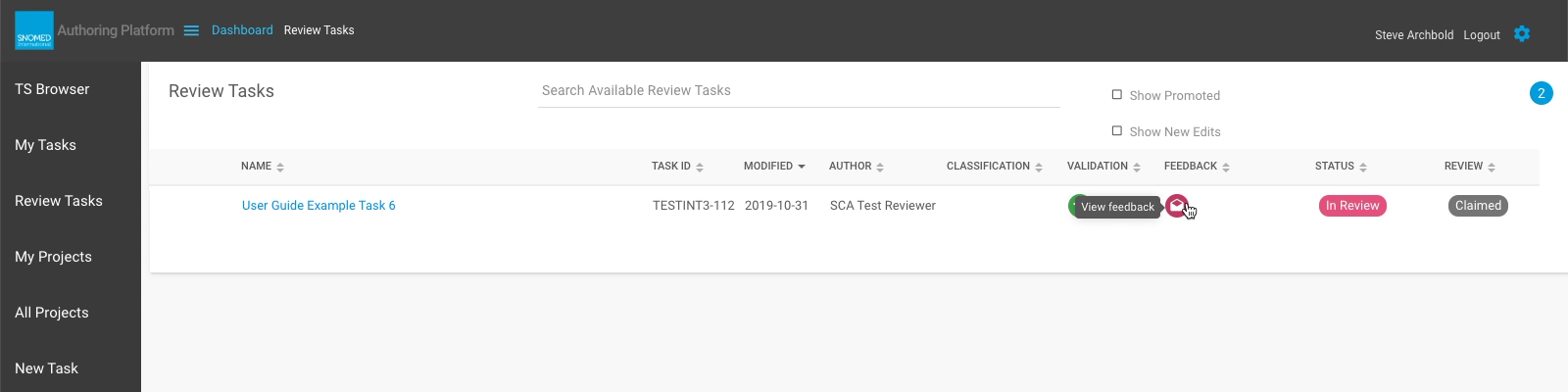
| <p><strong>OR</strong><br>In the <em>Review Tasks</em> view, press the feedback status icon (if present), on the task you want to open. This opens the <em>Task View</em> to the context of the <em>Feedback</em> activity tab. This option is only available once at least one review comment has been added by either a reviewer or author.</p>                                                                                                                                                                                                                                                                                                                                                      | <div><figure><img src="https://956592758-files.gitbook.io/~/files/v0/b/gitbook-x-prod.appspot.com/o/spaces%2FO8kNzHFIgz2UFgwrcB08%2Fuploads%2Fgit-blob-94101db562183d9af3e146eec9f53c20008e53bd%2F96808454.png?alt=media" alt="" height="120"><figcaption></figcaption></figure></div> |
| Whilst loading, the main content panel is cleared, and a blue header notification stating "Loading task details..." is presented. When completed, the header notification changes to "Task details loaded".                                                                                                                                                                                                                                                                                                                                                                                                                                                                                            | <div><figure><img src="https://956592758-files.gitbook.io/~/files/v0/b/gitbook-x-prod.appspot.com/o/spaces%2FO8kNzHFIgz2UFgwrcB08%2Fuploads%2Fgit-blob-42951b01a685220e29a3dc59f835fd0e447411b4%2F96808210.png?alt=media" alt="" height="120"><figcaption></figcaption></figure></div> |
| The *Task Review and Feedback* layout is presented, showing concepts to review, concepts approved, and inferred concept changes within the task. This layout maintains the Activities panel (Left Sidebar), as well as the Options panel menu for navigation back to other task contexts.                                                                                                                                                                                                                                                                                                                                                                                                              | <div><figure><img src="https://956592758-files.gitbook.io/~/files/v0/b/gitbook-x-prod.appspot.com/o/spaces%2FO8kNzHFIgz2UFgwrcB08%2Fuploads%2Fgit-blob-5a1da8908cba6f7ba573580c39a9464d0b09da52%2F96808452.png?alt=media" alt="" height="246"><figcaption></figcaption></figure></div> |

{% hint style="info" %}

#### Reviewers list

Claimed for review tasks are only visible in the *Review Tasks* view to the people named in the Reviewers list. It's possible to add/remove names from the Reviewers list whilst a review is in progress, to support nominating other people deputizing as reviewers, or switching to a replacement reviewer. This means it's also possible that the original claimant will no longer see the task in the *Review Tasks* list if they have been subsequently removed from the Reviewers list.
{% endhint %}

{% hint style="info" %}

#### Assigning reviewers (nominating for review)

An Author can add people to the Reviewers list after submitting for review, which will have the same effect for each Reviewer as if they had claimed the task for review from the `Available` state. This allows an author to nominate a particular reviewer (or selected set of reviewers) when submitting for review.
{% endhint %}

<a href="https://docs.google.com/forms/d/e/1FAIpQLScTmbZIf0UEQwYDkY27EEWBkaiYkHSbR0_9DmFrMLXoQLyL7Q/viewform?usp=pp_url&#x26;entry.1767247133=AP+UG&#x26;entry.670899847=International%20Reviewing%20Quick%20Start" class="button primary">Provide Feedback</a>


---

# Agent Instructions: Querying This Documentation

If you need additional information that is not directly available in this page, you can query the documentation dynamically by asking a question.

Perform an HTTP GET request on the current page URL with the `ask` query parameter:

```
GET https://docs.snomed.org/snomed-ct-user-guides/authoring-user-guide/international-reviewing-quick-start.md?ask=<question>
```

The question should be specific, self-contained, and written in natural language.
The response will contain a direct answer to the question and relevant excerpts and sources from the documentation.

Use this mechanism when the answer is not explicitly present in the current page, you need clarification or additional context, or you want to retrieve related documentation sections.