> For the complete documentation index, see [llms.txt](https://docs.snomed.org/llms.txt). Markdown versions of documentation pages are available by appending `.md` to page URLs; this page is available as [Markdown](https://docs.snomed.org/snomed-ct-user-guides/snomed-ct-browser-guide/how-to/find-the-sctid-for-a-known-concept-term.md).
# Find the SCTID for a known concept term
| Steps | References |
| ----------------------------------------------------------------------------------------------------------------------------------------------------------------------------------------------------------------------------------------------------------------------------------------------------------------------------------------------------------------------------------------------------------------------------------------------------------------------------------------------------------------------------- | --------------------------------------------------------------------------------------------------------------------------------------------------------------------------------------------------------------------------------------------------------------------------- |
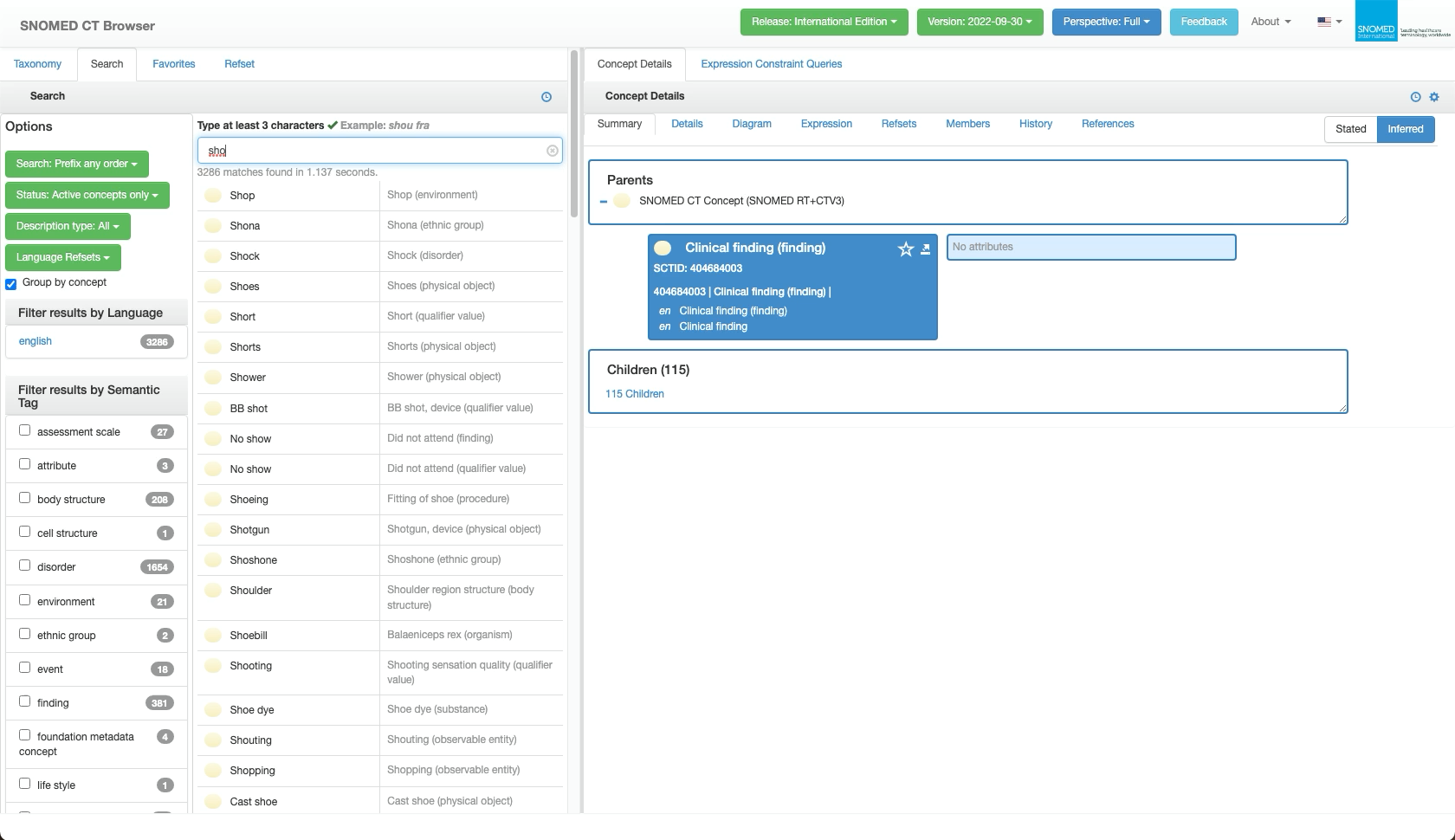
| From the SNOMED CT Browser *Full* view, *Search* tab context, enter the text of the FSN or PT into the Search... query box. |
|
|
As shown in the example hint above the Search... query box, for text-based interface languages, after typing 3 characters the search results will begin to dynamically respond to the entered text.
Whilst updating, the guide text "Searching..." will appear briefly below the Search... query box until results are returned.
Response time depends on the query and matching results, but typically within a few seconds.
|
|
|
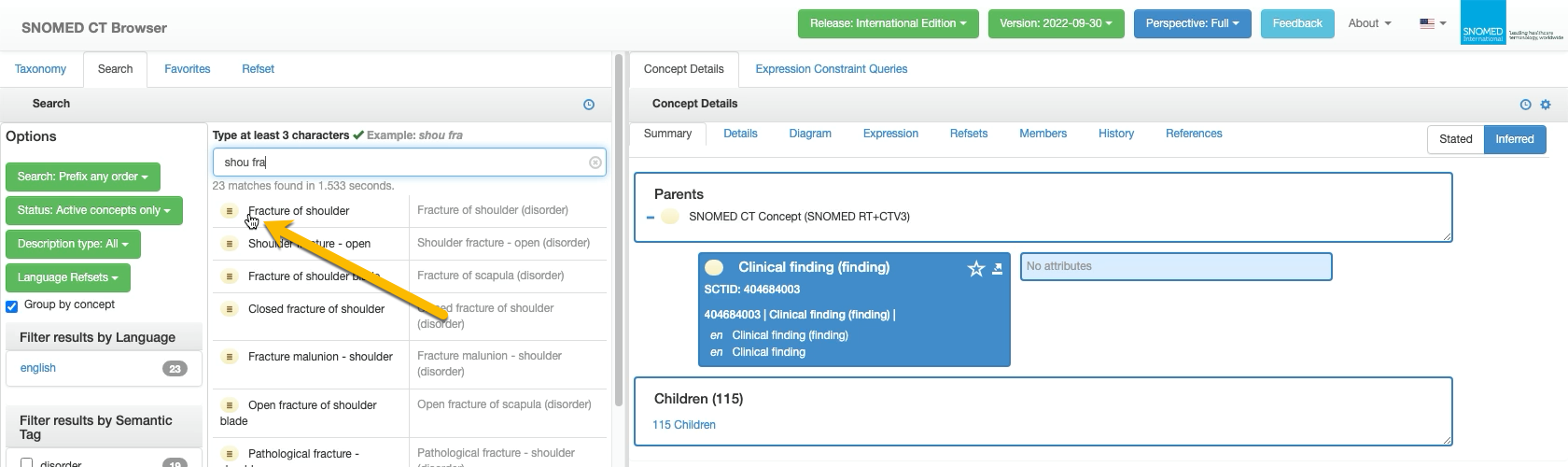
Search results matching the entered text will be presented below the Search... query box.
The number of matches and response time are displayed above the results list.
Each result row represents a SNOMED CT concept matching the search query, with a Definition Status icon followed by any term that pattern matches the query (FSN, Preferred Term, and synonyms) in the first results column; the second column shows the concept FSN.
| |
{% hint style="info" %}
**All terms are matched**
A result entry is generated for all pattern matches to the search query in a concept's lexical model descriptions, regardless of type, so the label in the first column may also be an *FSN* as well as the *Preferred Term* and other active synonyms.
The second column is always the FSN of the matched concept.
{% endhint %}
|
\| |
Press any of the row elements (icon or text) to focus on that concept and present it in the right hand *Concept Details* panel, open to the \`Summary\` tab.
|
\| |
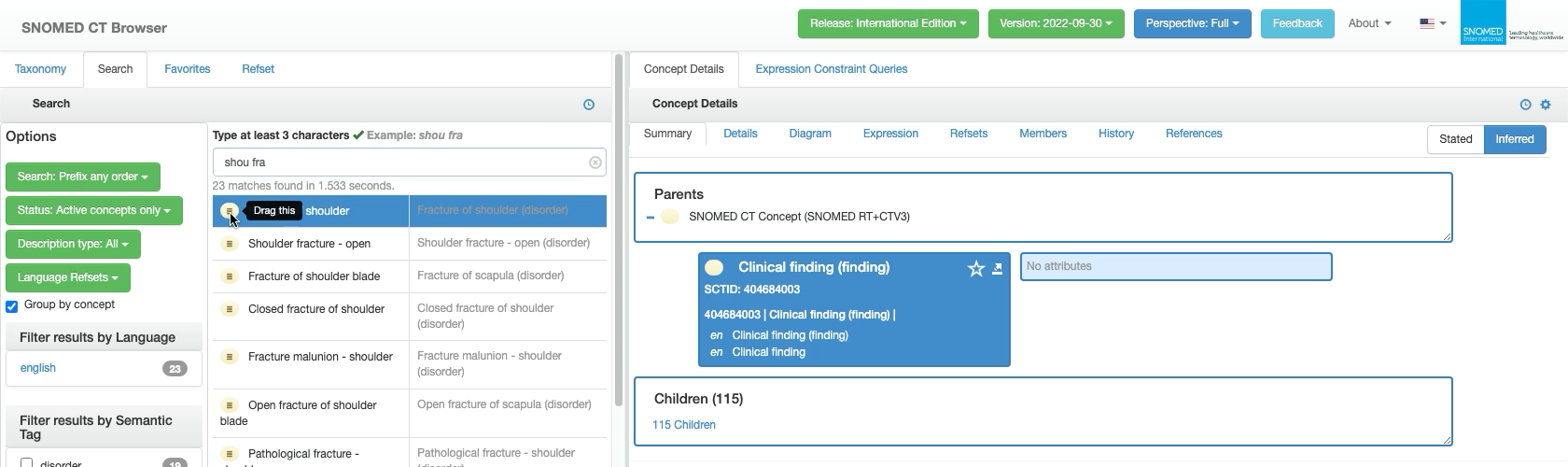
Alternatively, the screen cursor can be used - click within a row to highlight it with a blue background.
A tooltip will appear with the help text "Drag this".
|
\| |
Drag the highlighted content into the right hand *Concept Details* panel, to replace its current focus concept with the row concept.
|
\| |
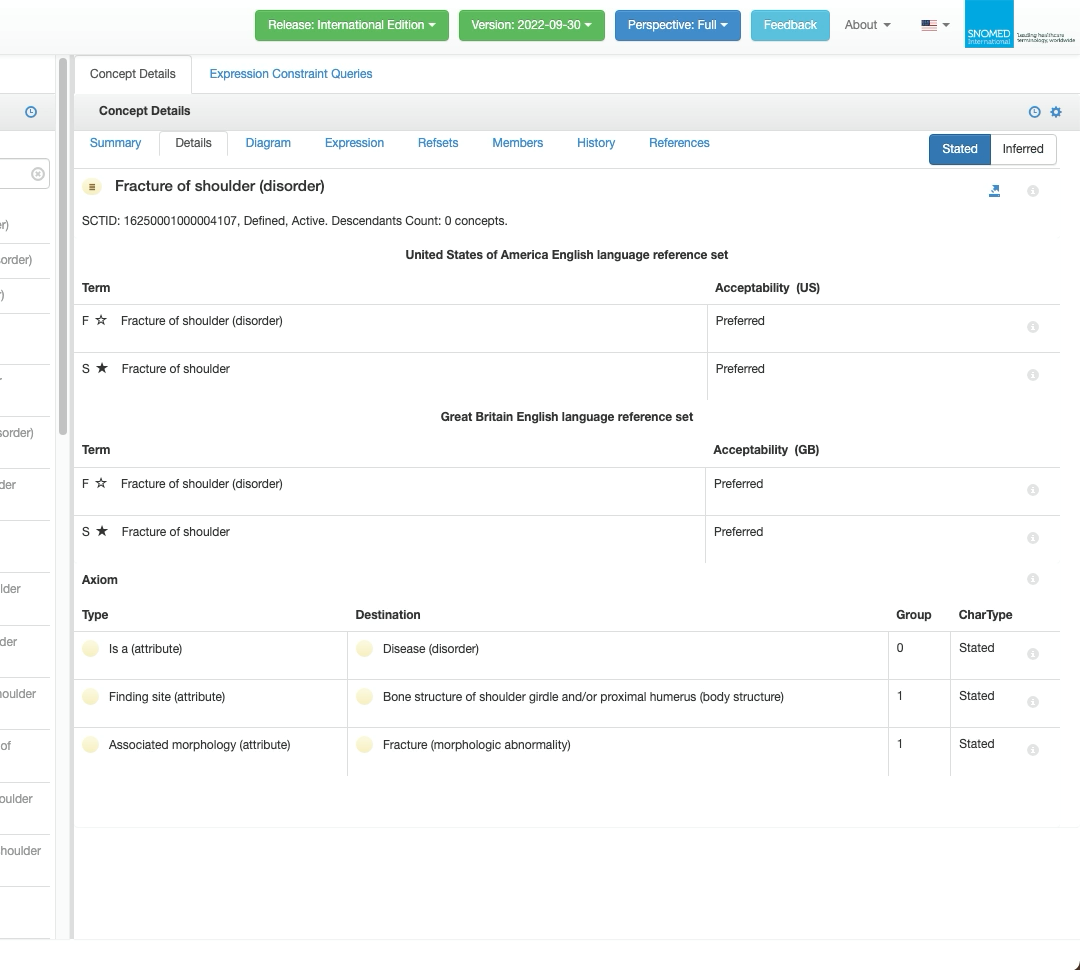
All *Concept Details* tabs include a toggle button to select either the \`Stated\` or \`Inferred\` view of the concept modelling. The default view is \`Inferred\` , indicated by its button being highlighted with a blue background.
When a view button is highlighted, pressing the other view button will switch to that view and also swap the button highlighting to match.Switching from one to the other does not change the tab selection, however tab content will adapt to show the relevant view.
The selection persists across all *Concept Details* tabs until switched again.
The screenshots here show the \`Inferred\` and \`Stated\` views for the *Details* tab of \[ 16250001000004107 \\| Fracture of shoulder (disorder)\\|]\().
|
\| |
Whilst the descriptions remain the same for both views, the \`Stated\` view has fewer Axioms, with an additional Axiom included in the \`Inferred\` view (added through classification of the concept).
|
|
Provide Feedback
---
# Agent Instructions
This documentation is published with GitBook. GitBook is the documentation platform designed so that both humans and AI agents can read, navigate, and reason over technical content effectively. Learn more at gitbook.com.
## Querying This Documentation
If you need additional information that is not directly available in this page, you can query the documentation by asking a question.
Perform an HTTP GET request on the following URL with the `ask` and `goal` query parameters:
```
GET https://docs.snomed.org/snomed-ct-user-guides/snomed-ct-browser-guide/how-to/find-the-sctid-for-a-known-concept-term.md?ask=&goal=
```
`ask` is the immediate question: it should be specific, self-contained, and written in natural language.
`goal` is what the user is ultimately trying to achieve, the reason they need the answer. Sharing it helps GitBook give you a better, more relevant answer. A goal is most helpful when it describes the outcome the user wants rather than restating the question. For example, with `ask=how do I create an API token`, a goal like `automate deployments from our CI pipeline` lets GitBook tailor the answer to that use case.
The response will contain a direct answer to the question and relevant excerpts and sources from the documentation.
Use this mechanism when the answer is not explicitly present in the current page, you need clarification or additional context, or you want to retrieve related documentation sections.