> For the complete documentation index, see [llms.txt](https://docs.snomed.org/llms.txt). Markdown versions of documentation pages are available by appending `.md` to page URLs; this page is available as [Markdown](https://docs.snomed.org/snomed-ct-user-guides/simplex-user-guide/how-to..../release-an-extension-in-simplex/review-extension.md).
# Review Extension
The Review stage begins once validation has completed successfully. At this point, all automated checks have finished and the focus shifts to confirming and understanding the changes that have been made since the last release.
The review stage is used to:
* Confirm what content has changed
* Check that changes align with the intended scope of work
* Identify unexpected or missing changes
* Decide whether the content is ready to progress
{% hint style="info" %}
Please refer to the following page of the Extensions Practical Guide for general advice regarding the review and validation of an extension: [Review and Validation](/snomed-ct-practical-guides/snomed-ct-extension-guide/5-key-steps/5.5-review-and-validation.md)
{% endhint %}
***
### Validation Completed
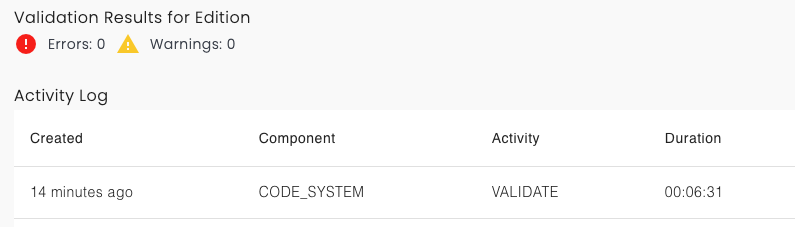
After validation has run:
* The validation process indicator stops spinning
* The validation duration is displayed
* The time since the last validation run is shown
* Validation results show Errors: 0, Warnings: 0 (ideally)
This confirms that the content is structurally valid and ready to be reviewed.
***
### Reviewing Changes Using the Daily Build Summary
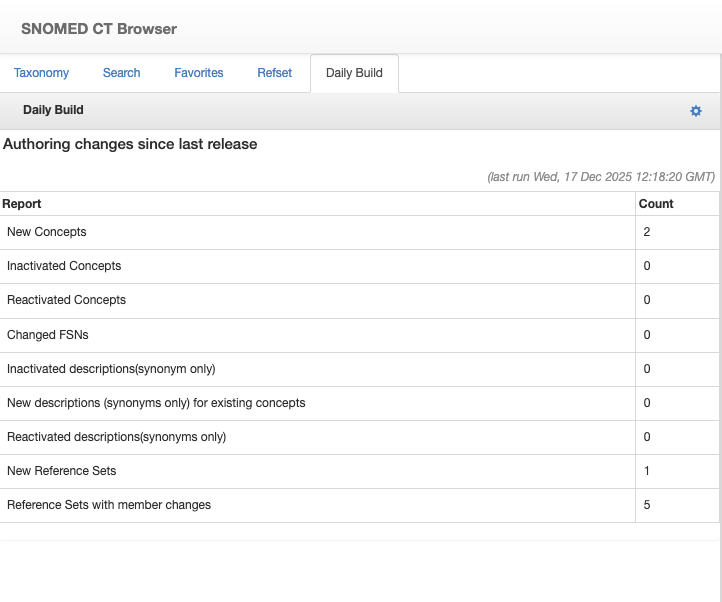
The primary review tool is the Daily Build summary in the SNOMED CT Browser.
#### How to access the Daily Build
1. Open the SNOMED CT Browser using the link in the Review box
1. Select the Daily Build tab
The Daily Build shows a summary of authoring changes since the last release, including:
* New concepts
* Inactivated or reactivated concepts
* Description changes
* New reference sets
* Reference sets Changes
* Reference Set member changes
This view allows reviewers to quickly assess:
* The volume of changes
* The types of changes made
* Whether the changes match expectations for the current work cycle
You can review the detail behind each summary row by selecting it.
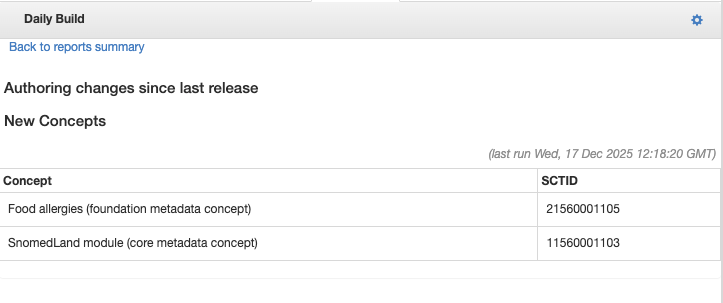
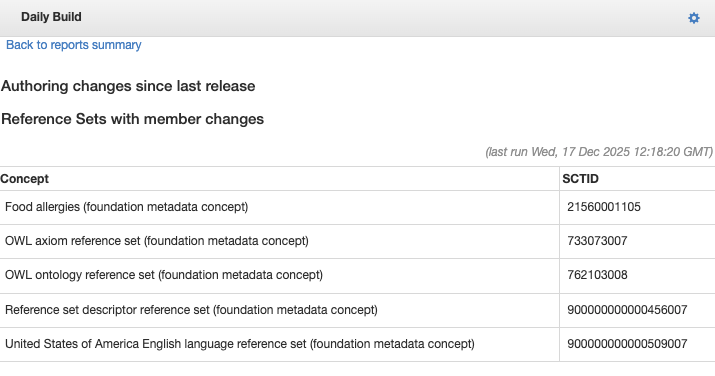
When you click a row in the Daily Build report (for example, the row showing the number of New Concepts or Reference Sets with member changes):
* The view updates automatically
* A detailed list of the relevant components is displayed
* Each item is shown with its concept name and SCTID
For example:
* Selecting New Concepts displays all concepts added since the last release. Here, you can see that two concepts has been added in the extension. Clicking each of these rows will display the details of the concept in the right side of the browser.
* Selecting Reference Sets with member changes displays the reference sets that have been modified. In this example, you see that 5 reference sets have Member Changes.
***
## Using the Review to Decide Next Steps
During review, you should confirm:
* All expected changes are present
* No unexpected changes appear
* Change counts are reasonable for the scope of work
**If the review is satisfactory:**
* The content can move forward to the next workflow stage (frelease preparation)
**If issues are identified:**
* Further authoring may be required
* Validation and Review should be re-run after changes are made
***
## Reviewing via Change Reports
For more detailed inspection or for sharing with stakeholders, changes can also be reviewed by downloading a change report.
Change reports are useful when:
* A detailed audit is required
* Changes need to be reviewed offline
* Formal sign-off processes are in place
---
# Agent Instructions
This documentation is published with GitBook. GitBook is the documentation platform designed so that both humans and AI agents can read, navigate, and reason over technical content effectively. Learn more at gitbook.com.
## Querying This Documentation
If you need additional information that is not directly available in this page, you can query the documentation dynamically by asking a question.
Perform an HTTP GET request on the current page URL with the `ask` query parameter, and the optional `goal` query parameter:
```
GET https://docs.snomed.org/snomed-ct-user-guides/simplex-user-guide/how-to..../release-an-extension-in-simplex/review-extension.md?ask=&goal=
```
`ask` is the immediate question: it should be specific, self-contained, and written in natural language.
`goal` is optional and describes the broader end goal you are ultimately trying to accomplish on behalf of the user. GitBook uses it to tailor the answer towards what is most useful for that goal.
The response will contain a direct answer to the question and relevant excerpts and sources from the documentation.
Use this mechanism when the answer is not explicitly present in the current page, you need clarification or additional context, or you want to retrieve related documentation sections.